Every time you click into Chrome's address bar, you're greeted by the same quiet prompt: Search Google.com or type a URL. It's one of the most-seen pieces of text on the internet, tucked into billions of browser windows every single day. Most people glance past it without a second thought.
But here's the thing: that small placeholder text represents a genuinely fascinating piece of web infrastructure. It's the entry point for how most people navigate the internet, and the decisions Chrome makes in that split second after you hit Enter shape everything from your browsing experience to how brands live or die in search results.
For everyday users, understanding the omnibox can save real frustration when things go wrong. For marketers, founders, and agencies, it's foundational knowledge. The way users interact with that address bar determines whether they land directly on your website or end up on a search results page where your competitors are waiting. And as AI assistants start replacing the address bar for a growing slice of queries, the stakes are only getting higher.
This article breaks down exactly what "Search Google.com or type a URL" means, how Chrome's omnibox actually works under the hood, how to fix it when it misbehaves, and what all of this means for your SEO and AI visibility strategy. Whether you're a curious user or a digital marketer building an organic growth playbook, there's something here worth knowing.
The Omnibox Decoded: Why Chrome Combines Search and Navigation
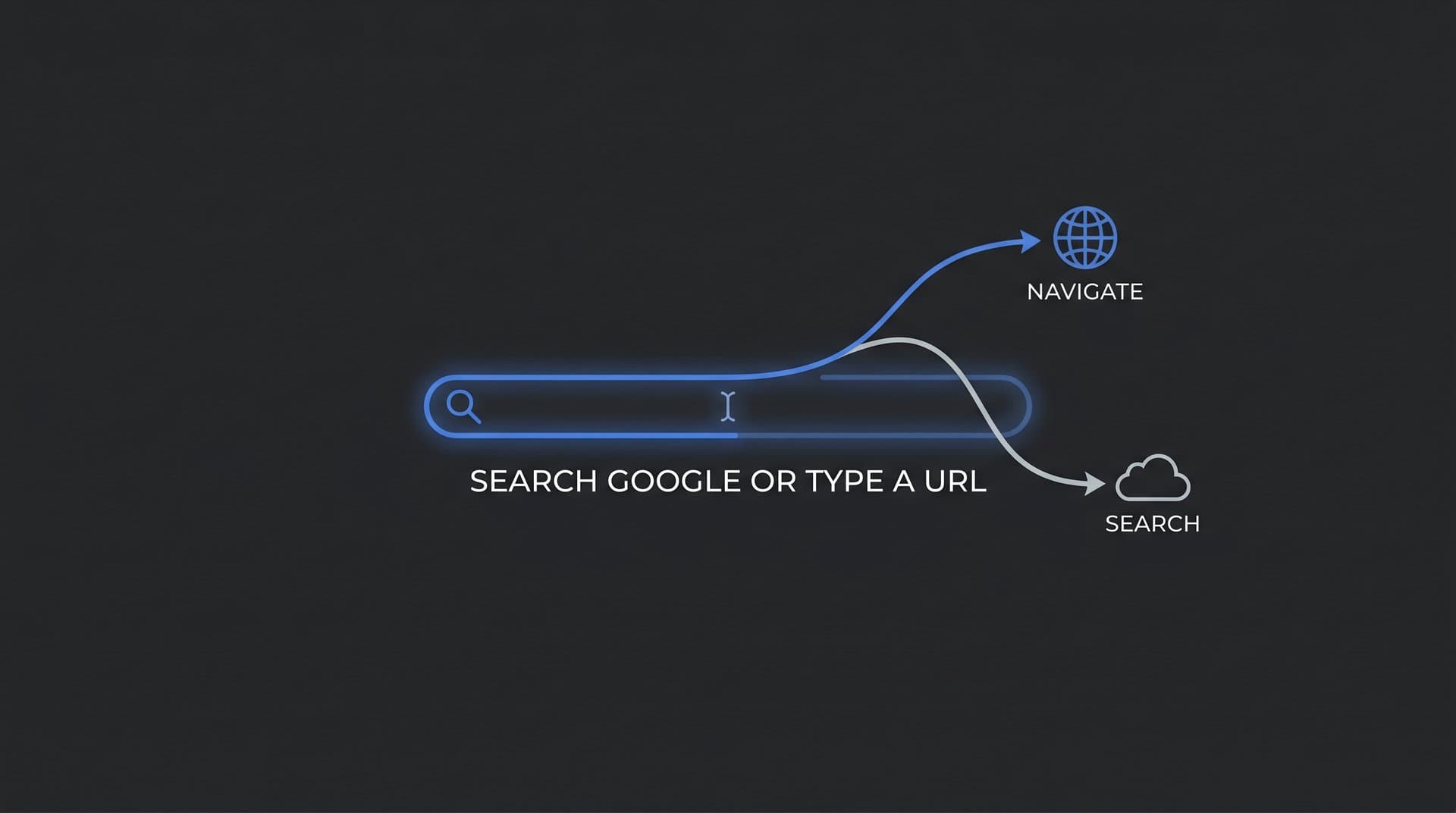
The phrase "Search Google.com or type a URL" isn't just instructional filler. It's describing a genuinely dual-purpose tool: Chrome's omnibox, the address bar that functions simultaneously as a URL navigator and a search engine input field.
Before Chrome launched in 2008, most browsers kept these functions separate. Internet Explorer, Firefox, and Safari all had a dedicated address bar for typing URLs and a separate search box, usually in the top-right corner, for running queries. It was a clean division of labor, but it also created friction. Users had to decide which box to use before they even knew what they were looking for.
Google's engineers collapsed those two inputs into one when they built Chrome, and the omnibox was born. The idea was elegantly simple: let the browser figure out what you mean, rather than making you specify it upfront. That single design decision changed how billions of people use the web.
So how does Chrome actually decide whether you're typing a URL or a search query? It runs a fast pattern-matching process every time you type. It's looking for signals that suggest a web address: things like dots in the right places (think example.com), forward slashes, protocol prefixes like https:// or http://, and recognized top-level domains like .com, .org, .net, and hundreds of others. Understanding the different Google search types helps clarify how these inputs are processed differently.
If your input matches those patterns, Chrome treats it as a URL and navigates directly. If it doesn't, Chrome assumes you're searching and sends your query to Google. This is why typing apple.com takes you straight to Apple's website, while typing apple (no dot, no TLD) pulls up a Google search results page.
There's also a middle ground that trips people up. Some single words happen to match known hostnames or local network addresses, so Chrome may attempt to navigate rather than search. And some legitimate queries contain dots, like a version number or a decimal, which can confuse the routing logic. Chrome handles these edge cases reasonably well, but it's not perfect.
What makes this interesting beyond the technical detail is the behavioral implication. Because Chrome defaults to search for anything that doesn't look like a URL, the vast majority of omnibox inputs end up as Google searches, not direct navigations. That means Google's search results page is the de facto homepage of the web for most users, and it's why your brand's presence in those results matters so much more than many people realize.
The omnibox also learns over time. It factors in your browsing history and bookmarks when making routing decisions, so a word you've visited as a URL before might autocomplete differently for you than for a first-time user. This personalization layer adds another dimension to how the same input can produce different outcomes for different people.
Searching vs. Typing a URL: What Actually Happens Behind the Scenes
Let's trace both pathways in detail, because they're quite different processes that just happen to start in the same box.
When you type a full URL like example.com and hit Enter, Chrome initiates DNS resolution. Your browser asks a Domain Name System server to translate that human-readable address into an IP address, then establishes a connection with the server at that IP, and loads the page. The whole process typically takes a fraction of a second on a good connection. You go directly from your address bar to the website, with no intermediary.
When you type a search query like best running shoes, something entirely different happens. Chrome sends that query to Google's servers, which process it through their ranking algorithms and return a Search Engine Results Page (SERP). You're not going to a website yet. You're seeing Google's curated view of what websites are relevant to your query, and then you choose where to go from there.
That distinction matters enormously for marketers. In the first scenario, your website either loads or it doesn't. In the second, you're competing for attention against every other result on that page. Understanding search intent in SEO is essential to winning in that competitive environment.
Now add autocomplete into the picture. As you type into the omnibox, Chrome is already working to predict what you want. It draws on several sources simultaneously: your personal browsing history, your saved bookmarks, trending searches from Google's Suggest API, and popular queries from other Chrome users. The result is that dropdown list of suggestions that appears almost instantly as you type.
Autocomplete is genuinely useful, but it also shapes behavior in subtle ways. If a suggestion appears that's close to what you want, many users will select it rather than finish typing. This means the queries that actually reach Google are often influenced by what Chrome suggests, not just what users originally intended to type.
Here's where it gets particularly interesting for brand strategy. Consider a user who wants to visit Nike's website. They type Nike into the omnibox. Unless they've visited nike.com recently enough that it autocompletes as a URL, Chrome is likely to treat this as a search query. The user lands on a SERP showing Nike's homepage, their social profiles, news results, and potentially competitor ads.
This is why branded search optimization isn't optional. Even users with clear navigational intent, meaning they already know where they want to go, often end up on a search results page first. If your brand's SERP appearance is weak, confusing, or cluttered with negative results, you're losing conversions from people who were already trying to find you.
The autocomplete layer also creates an opportunity. Brands that appear prominently in Chrome's suggestion dropdown benefit from a kind of passive visibility, appearing in the consideration set before a user has even finished forming their query.
When the Omnibox Misbehaves: Common Issues and Quick Fixes
For all its elegance, the omnibox can and does break in frustrating ways. Here are the most common problems users encounter and how to resolve them.
Wrong Default Search Engine: This is the most frequent complaint. You type a query and instead of Google, you end up on Bing, Yahoo, or some unfamiliar search engine. This usually happens because a browser extension or software installer quietly changed your default search settings. To fix it, go to Chrome's Settings, click "Search engine" in the left sidebar, and set your preferred engine under "Search engine used in the address bar." While you're there, click "Manage search engines" and remove any entries you don't recognize. If you're curious about what alternatives exist, our guide to search engines beside Google covers the landscape.
Autocomplete Not Appearing: If suggestions have stopped showing up as you type, first check that autocomplete is enabled. Go to Settings, then "You and Google" (or "Sync and Google services"), and make sure "Autocomplete searches and URLs" is turned on. If it's already on, try clearing your browsing history and cache via Settings > Privacy and security > Clear browsing data. A corrupted history database can sometimes break suggestions.
Blank Page After Typing a URL: If you type a URL and land on a blank white page, the most likely culprits are a cached bad response, a DNS issue, or an extension interfering with page loads. Start by clearing your cache, then try the URL in an Incognito window (which disables extensions by default). If it loads in Incognito, a specific extension is the problem. Disable them one by one to identify the culprit.
Unexpected Redirects: If typing certain URLs redirects you somewhere unexpected, this is often a sign of a browser hijacker extension or malware. Run a malware scan, then review your installed extensions at chrome://extensions and remove anything unfamiliar.
Beyond troubleshooting, you can also customize the omnibox to work more intelligently for your workflow. Chrome supports keyword shortcuts for site-specific searches. For example, if you type yt followed by a space into the omnibox, Chrome can search YouTube directly. You can set these up by going to Settings > Search engine > Manage search engines and adding custom site search entries. This turns the omnibox into a productivity tool that goes well beyond basic browsing.
You can also manage how much data Chrome uses for suggestions. Under Settings > Privacy and security > Sync and Google services, you'll find options to control whether Chrome sends your omnibox input to Google as you type. Adjusting these settings affects both your privacy and the quality of suggestions you receive.
What Marketers Need to Know About Omnibox Behavior and SEO
If you're building an organic growth strategy, the omnibox is where it all starts. Most web journeys begin with someone typing something into Chrome's address bar, and how that input gets routed determines whether you're competing on your own terms or on Google's.
The critical insight for marketers is this: navigational intent doesn't guarantee direct traffic. When a user types your brand name into the omnibox, they're expressing intent to find you. But unless they type your full URL with enough precision to trigger direct navigation, they'll likely land on a SERP first. What they see on that SERP is your brand's first impression, whether you designed it that way or not.
This makes branded search optimization a non-negotiable priority. When someone searches your brand name, you want to control the narrative. That means optimizing for sitelinks (the sub-links that appear under your main result), maintaining a clean knowledge panel if you're eligible for one, and ensuring your meta descriptions and page titles accurately represent your brand. Learning how to improve search engine rankings is the foundation of controlling that branded SERP experience.
Misspellings and partial brand names compound the challenge. Users often type approximations of brand names, and Chrome's autocomplete may or may not correct them. If your brand name is commonly misspelled, it's worth understanding what search results appear for those variations. In some cases, optimizing for common misspellings as part of your keyword research for organic SEO makes practical sense.
The omnibox is also evolving in ways that matter for SEO strategy. Google has been integrating AI Overviews into search results, which means that when users type queries into the omnibox, they may see an AI-generated summary at the top of the SERP before they ever reach organic results. This changes the click dynamic significantly. Getting your content cited within AI Overviews is becoming as important as ranking in traditional organic positions.
Page speed and direct URL reliability also matter more than many marketers acknowledge. Users who do type your URL directly expect fast, error-free loading. A slow or broken direct navigation experience erodes trust quickly, and users who encounter it once are more likely to search for you next time rather than type your URL, putting you back in the competitive SERP environment.
Think of your omnibox presence as having two components: your organic search footprint for query-based inputs, and your direct navigation experience for URL-based inputs. Both need attention, and both contribute to how users experience your brand in that first moment of intent.
Beyond the Address Bar: How AI Search Is Changing Discovery
Here's a shift worth paying close attention to. For decades, the omnibox was the default interface for finding information on the web. You had a question, you typed it into Chrome, and Google gave you a list of links. That model is being disrupted.
AI assistants like ChatGPT, Claude, and Perplexity are increasingly functioning as alternative omniboxes. Instead of typing a query into Chrome and scanning a results page, users are typing conversational questions into AI interfaces and receiving direct, synthesized answers. The behavior is similar, but the mechanism is completely different, and so are the implications for how brands get discovered. Applying conversational search optimization tactics is becoming essential for brands that want to stay visible in this new paradigm.
When a user asks ChatGPT "what's the best project management tool for small teams," they're not seeing a SERP. They're seeing an AI-generated response that may or may not mention your brand, depending on how well your content has been absorbed into the model's training data and how authoritative your presence is across the web.
This is the concept of AI visibility. Just as ranking on page one of Google determines whether users find you through the omnibox, being mentioned and cited by AI models determines whether users find you through conversational AI interfaces. The two channels are increasingly parallel, and brands that only optimize for traditional search are leaving a growing slice of discovery unaddressed. If you're struggling with this, our analysis of poor AI search visibility explains the most common causes and how to fix them.
The emerging discipline of GEO (Generative Engine Optimization) addresses exactly this gap. It focuses on creating content that AI models are likely to reference, structuring information in ways that AI systems can easily parse and cite, and building the kind of topical authority that makes your brand a credible source in AI-generated responses.
The trajectory is clear: search entry points are diversifying. The omnibox isn't going away, but it's no longer the only gateway that matters. Brands that understand both traditional omnibox behavior and the newer AI discovery layer are the ones best positioned for sustainable organic growth.
Putting It All Together: Optimizing for Every Way Users Find You
The omnibox is small, but it sits at the center of how most people navigate the web. Understanding how it works, how it decides between search and direct navigation, how autocomplete shapes behavior, and how it's evolving alongside AI search gives you a meaningful strategic edge.
For everyday users, the practical takeaways are simple: know how to fix common omnibox issues, customize your search shortcuts, and understand why typing a brand name doesn't always take you directly to that brand's site.
For marketers and founders, the implications run deeper. Audit your branded search results right now. Type your brand name into Chrome and look critically at what appears. Are your sitelinks accurate? Does your knowledge panel reflect your current positioning? Are there negative results or competitor ads crowding your branded SERP? These are fixable problems, but only if you know they exist.
Make sure your site loads correctly and quickly when URLs are typed directly. Test it from different networks and devices. A broken direct navigation experience quietly erodes brand trust in ways that are hard to measure but very real.
Then look beyond the address bar. Start monitoring how AI platforms like ChatGPT, Claude, and Perplexity reference your brand when users ask relevant questions. This is the new frontier of search visibility, and most brands are flying blind here. The good news is that the same content quality and topical authority that helps you rank in Google also tends to improve your AI visibility, so the two strategies reinforce each other.
The search landscape is evolving faster than most SEO playbooks can keep up with. The brands that stay ahead are the ones tracking every channel where users might discover them, from the Chrome omnibox to the AI assistant interface. Start tracking your AI visibility today and see exactly where your brand appears across top AI platforms. Stop guessing how AI models like ChatGPT and Claude talk about your brand, and get the visibility, content opportunities, and automation you need to grow organic traffic across every channel that matters.