You've seen it thousands of times. You click into Chrome's address bar, and there it is: Search Google or type a URL. Most people glance past it without a second thought, fingers already moving toward their next query or destination. But that simple placeholder text is actually describing two fundamentally different actions, and understanding the difference can make you faster, smarter, and more strategic about how you use the web.
For everyday users, the distinction might feel academic. But for marketers, founders, and anyone building a brand online, the address bar is a window into how people discover websites, how search engines interpret intent, and increasingly, how AI is reshaping the entire discovery process. The way someone types into that little bar determines whether your site gets found, bookmarked, or bypassed entirely.
This article breaks down exactly what happens when you search versus when you type a URL, why Chrome built both functions into one field, how to troubleshoot common address bar problems, and what all of this means for your brand's visibility in both traditional search and the new world of AI-powered answers.
The Omnibox: Chrome's Elegant Merger of Two Browser Functions
Before Chrome launched in September 2008, most browsers kept things separate. Internet Explorer and Firefox both had a dedicated address bar at the top and a separate search box tucked to the side. Two fields, two purposes, two places to click. It was functional, but it created unnecessary friction every time you wanted to find something online.
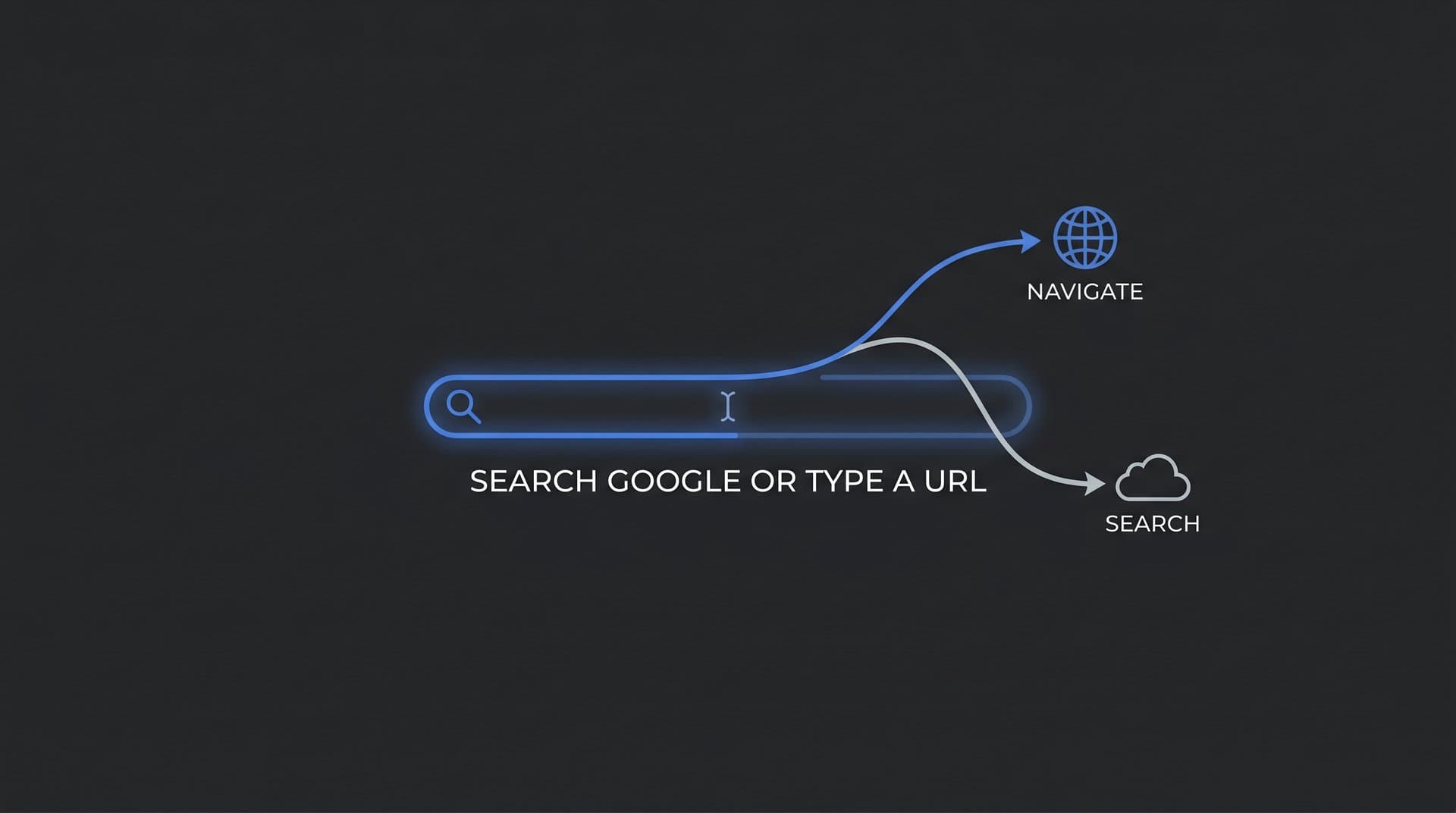
Google's engineers had a different idea. When Chrome debuted, it introduced the omnibox: a single input field that handled both direct navigation and web search. The placeholder text, "Search Google or type a URL," isn't just a label. It's a description of two genuinely distinct behaviors living inside one interface. The concept was so effective that virtually every major browser eventually adopted the same approach.
So what are those two behaviors, exactly?
Typing a URL: When you enter a complete web address like trysight.ai or https://www.example.com, Chrome recognizes it as a destination and navigates directly to that site. No search engine involved, no results page to wade through. You go straight there.
Typing a search query: When you enter words that don't match a URL pattern, like "best SEO tools for startups" or "how to track AI visibility," Chrome treats it as a search query and sends it to your default search engine, typically Google, which returns a results page. Understanding search intent in SEO helps explain why the type of input matters so much for discoverability.
The way Chrome decides which behavior to trigger comes down to pattern recognition. If your input contains a recognizable domain structure (a top-level domain like .com, .ai, or .org, with no spaces), Chrome leans toward treating it as a URL. If it looks like natural language or a phrase with spaces, it routes to search. There's some nuance here: a single word without a dot, like "dashboard," might trigger a search even though it could theoretically be a local intranet address. Chrome errs on the side of search when it's ambiguous.
This design philosophy, reducing friction and anticipating user intent, is deeply baked into how Chrome operates. And it has had lasting implications not just for browser design, but for how people interact with the web and how brands need to think about discoverability. The omnibox didn't just merge two boxes. It merged two modes of thinking about web access into one seamless habit.
What Actually Happens When You Hit Enter
The omnibox looks simple on the surface, but the moment you press Enter, a different chain of events unfolds depending on what you typed. Understanding that chain helps explain a lot about web performance, search behavior, and why some sites load instantly while others seem to vanish into a results page.
The URL path: When Chrome recognizes your input as a web address, it initiates a DNS lookup, essentially asking the internet's address book to translate the human-readable domain name into an IP address. Once resolved, Chrome sends an HTTP or HTTPS request directly to that server, and the page loads. This is the fastest path to a website because it bypasses search engines entirely.
The search path: When Chrome interprets your input as a query, it packages that text and sends it to Google's servers (or whichever search engine you've set as default). Google processes the query, runs it through its ranking algorithms, and returns a Search Engine Results Page (SERP) populated with links, featured snippets, ads, and other content formats. You're now one click away from your destination, not already there. If you're curious about what determines which pages appear on that SERP, understanding how to improve search engine rankings provides essential context.
Here's where it gets interesting: Chrome doesn't wait for you to finish typing before it starts working. The omnibox uses a combination of your browsing history, saved bookmarks, and Google's Suggest API to generate real-time autocomplete predictions as you type. That dropdown list of suggestions isn't random. It's a blend of what you've visited before and what millions of other users are searching for right now.
This blurs the line between searching and navigating. If you've visited a site frequently, Chrome might suggest the full URL before you've typed more than three characters, effectively turning what would have been a search into a direct navigation. Conversely, if you start typing a domain name you've never visited, Chrome might default to showing search suggestions instead, pulling you toward a SERP when you intended to go directly somewhere.
One often-overlooked setting: the "Search Google" part of the placeholder text is not fixed. Chrome allows you to change your default search engine through Settings > Search engine. Switch it to Bing, DuckDuckGo, Brave Search, or any other supported engine, and keyword queries from the omnibox will route there instead. The placeholder text in Chrome's interface doesn't update to reflect this change, which can cause confusion, but the behavior does.
For power users and professionals, knowing which path your input will take means you can be more intentional: go directly when you know the destination, search when you're exploring, and use autocomplete strategically to navigate faster.
When the Address Bar Misbehaves: Fixes for Common Problems
For all its elegance, the omnibox can cause real frustration when things go wrong. A few issues come up repeatedly, and most have straightforward solutions once you know where to look.
Your URL keeps triggering a search instead of loading the site. This usually happens when Chrome can't resolve the domain or when the input is ambiguous. A typo in the domain name is the most common culprit: "goggle.com" instead of "google.com" will route to a search result rather than a DNS lookup. The fix is simply to double-check spelling. For domains that Chrome consistently misreads as queries, prepend "https://" to force direct navigation. Typing https://trysight.ai tells Chrome explicitly: this is a URL, not a query.
"This site can't be reached" errors. These appear when Chrome successfully identifies your input as a URL but the DNS lookup fails or the server doesn't respond. Common causes include a mistyped domain, an expired or offline site, or a local network issue. Clearing Chrome's DNS cache (via chrome://net-internals/#dns) can resolve cases where an outdated IP address is being used.
Your default search engine changed without your permission. This is a classic sign of browser hijacking, where a malicious extension or software installation quietly swaps your default search engine to something else. The fix: go to chrome://settings/searchEngines, identify the unwanted engine, and remove it. Then reset your preferred default. It's also worth auditing your installed extensions at chrome://extensions and removing anything you don't recognize.
Unwanted autocomplete suggestions cluttering the bar. If the omnibox keeps surfacing outdated or irrelevant suggestions, you can remove individual entries by hovering over them in the dropdown and pressing Shift + Delete (on Windows/Linux) or Shift + Fn + Delete (on Mac). For a broader reset, clearing browsing history in Chrome settings will wipe the suggestion cache. If your own site's content isn't appearing in those suggestions, it may be a sign that your pages aren't ranking in search the way they should.
Forcing a direct URL visit every time. If you're navigating to sites that Chrome insists on searching instead, the most reliable method is to always include the protocol: start with https://. Chrome treats any input beginning with a valid protocol as a URL without exception. This is especially useful for internal tools, staging environments, or less common TLDs that Chrome might not recognize automatically.
The Address Bar as a Brand Visibility Signal
Here's where the omnibox becomes genuinely strategic for marketers and founders. Every time someone types your brand name or domain directly into the address bar, that's a navigational query, and it carries meaningful weight in the broader SEO ecosystem.
Navigational queries signal brand recognition. When users skip the search results page and go directly to your site, it tells search engines that people know who you are and where to find you. Google's algorithms consider brand search volume and direct traffic patterns as indirect indicators of authority and trustworthiness. A brand that generates consistent direct navigation is, by definition, memorable and established. You can check your position in Google search to see how well your brand captures these navigational queries.
Autocomplete is another dimension worth understanding. The suggestions Chrome surfaces in the omnibox dropdown are influenced by aggregate search volume across Google's user base. If your brand name is searched frequently enough, it can appear as an autocomplete suggestion when users start typing related terms. This creates a compounding visibility effect: more searches lead to more autocomplete appearances, which lead to more searches. For brands in competitive categories, showing up in autocomplete is meaningful real estate.
This connects directly to indexing. A site that isn't properly indexed by Google won't appear in search results, which means it misses both the navigational and organic search pathways. Ensuring your pages are crawlable, that your sitemap is current, and that new content is indexed promptly is foundational to being discoverable through either route. Tools that automate indexing, like those using IndexNow integration, can accelerate how quickly new content enters the search ecosystem. Learning how to get indexed by search engines faster matters especially for time-sensitive topics.
For brands managing content at scale, the connection between publishing, indexing, and search visibility is a workflow problem as much as a technical one. The faster your content gets indexed, the sooner it can capture both branded and non-branded search traffic from the omnibox.
The Shift Beyond the Omnibox: AI Search and Brand Discovery
The "search Google or type a URL" model has defined web discovery for nearly two decades. But a meaningful shift is underway, and it has significant implications for anyone building a brand online.
AI-powered tools like ChatGPT, Claude, and Perplexity are changing how people find information. Instead of typing a query into the omnibox and scanning a list of links, users increasingly ask conversational questions and receive direct, synthesized answers. These answers often cite specific brands, products, and sources. Understanding how AI search engines work is essential for grasping why the traditional SERP is no longer the only gateway between a user's question and your website.
For marketers and founders, this creates a new category of visibility to track and optimize. It's not enough to rank on page one of Google if your brand isn't being mentioned in AI-generated responses to relevant questions. This is the core premise of Generative Engine Optimization (GEO): creating and structuring content so that AI models are likely to surface your brand when users ask questions in your category.
The parallel to the omnibox evolution is worth noting. Just as Chrome merged the address bar and search box into one field, AI search is merging search, navigation, and answer delivery into a single experience. Users don't navigate to a results page and then click through. They ask, they get an answer, and the brands mentioned in that answer capture the attention. The discovery funnel is collapsing into a single moment.
This means brand visibility now needs to be tracked across two distinct landscapes: traditional search (where the omnibox routes users to SERPs) and AI-generated responses (where models like ChatGPT or Perplexity decide which brands to mention). These are different optimization challenges requiring different strategies. Traditional SEO focuses on crawlability, keyword relevance, and link authority. GEO focuses on being cited as a credible, authoritative source in the training data and retrieval systems that AI models use to generate answers. For a comprehensive approach, explore proven AI search optimization strategies that address both dimensions.
Brands that monitor both dimensions, knowing where they rank in search and how they're described by AI, will have a clearer picture of their actual discoverability. Those flying blind in either area are leaving visibility on the table.
Omnibox Power Moves for Professionals
If you spend hours in a browser every day managing campaigns, researching competitors, or publishing content, the omnibox has productivity features that most users never discover. Here are the ones worth knowing.
@-shortcuts for targeted searching: Chrome introduced site search shortcuts that let you search specific sources directly from the address bar. Type @bookmarks and then your search term to find saved bookmarks, @tabs to search your open tabs, or @history to search your browsing history without opening a separate page. These shortcuts turn the omnibox into a command center for navigating your own browser data.
Quick calculations and conversions: Type a math expression like "450 * 12" or a unit conversion like "50 miles in km" directly into the omnibox and Google will display the answer in the autocomplete dropdown before you even press Enter. For marketers doing quick budget math or campaign calculations, this saves the round-trip to a calculator app.
Custom search engines for your tools: Chrome lets you set up custom search engine shortcuts in Settings > Search engine > Manage search engines. You can assign a keyword like "ga" to Google Analytics' search URL, "notion" to your Notion workspace search, or "ahrefs" to Ahrefs' keyword explorer. Then typing that keyword in the omnibox followed by Tab activates that site's search directly. For teams managing multiple platforms, this turns the address bar into a hub for cross-tool navigation.
The site: operator for targeted research: Typing site:competitor.com keyword into the omnibox runs a Google search restricted to that domain. This is invaluable for competitor SEO research, auditing your own content, or quickly finding a specific page on a large site without navigating through menus.
For marketers managing multiple clients or campaigns, these features compound into meaningful time savings. The omnibox isn't just a navigation tool. It's a productivity interface, and treating it as one changes how efficiently you move through your workday.
Putting It All Together
"Search Google or type a URL" describes two fundamentally different ways of accessing the web, and the distinction matters more than most people realize. Direct navigation signals brand recognition and bypasses the competitive noise of search results. Search queries feed into algorithms that shape visibility, autocomplete rankings, and organic traffic. Understanding both paths makes you a more intentional user and a more strategic marketer.
For anyone building a brand online, the address bar is a practical reminder that discoverability has multiple dimensions. Your site needs to be indexed so it appears in search results. Your brand needs to be recognizable enough that people navigate to it directly. And increasingly, your content needs to be structured so that AI models mention you when users ask relevant questions, because that's where a growing share of discovery is happening.
The web is evolving from a model where users type into a box and click through links, toward one where AI synthesizes answers and surfaces brands in conversational responses. Staying visible in that new landscape requires tracking more than keyword rankings. It requires knowing how AI models describe your brand, what sentiment they associate with it, and which content gaps you need to fill to earn more mentions.
If you're ready to move beyond traditional SEO and understand exactly how your brand appears across AI platforms like ChatGPT, Claude, and Perplexity, the tools to do that exist today. Start tracking your AI visibility today and see exactly where your brand appears across top AI platforms, uncover content opportunities, and build the kind of presence that gets discovered whether users are typing into an omnibox or asking an AI assistant.