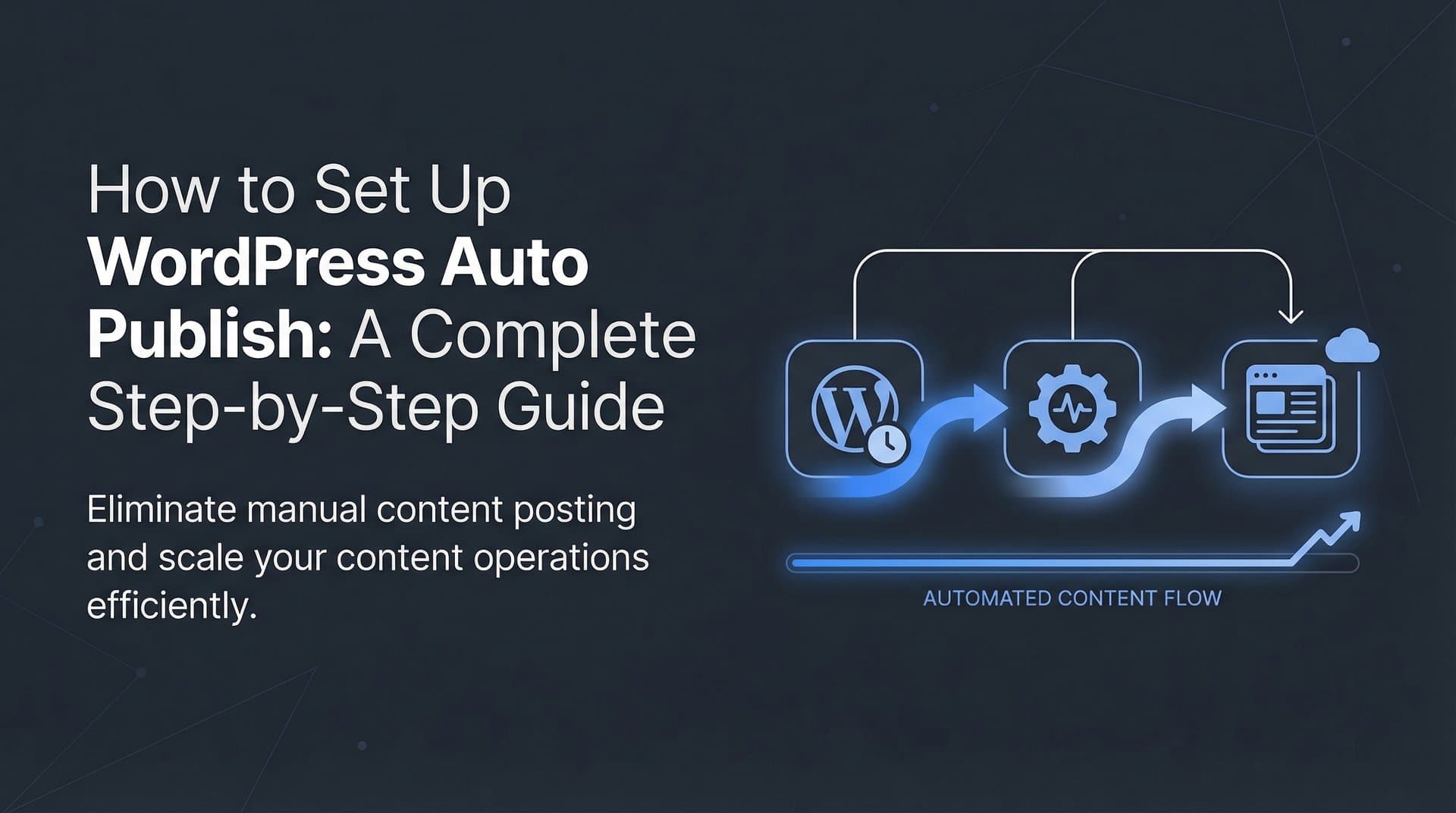
Publishing content manually in WordPress can become a significant bottleneck when you're scaling your content operations. Every minute spent clicking 'Publish' is a minute not spent on strategy, optimization, or creating more valuable content. WordPress auto publish functionality transforms your content workflow by automating the final—and often most tedious—step of getting your articles live.
Whether you're managing a single blog or coordinating content across multiple sites, auto publishing eliminates the friction between content creation and content delivery. Think of it like setting up a sprinkler system instead of watering your garden by hand: the same essential task happens, but you're free to focus on planting and cultivating.
This guide walks you through setting up WordPress auto publish from scratch, covering native scheduling features, plugin-based automation, and API integrations that connect your content generation tools directly to your WordPress site. By the end, you'll have a fully automated publishing pipeline that works while you focus on what matters most: creating content that drives organic traffic and gets your brand mentioned across AI search platforms.
Step 1: Assess Your Publishing Needs and Choose Your Automation Approach
Before diving into configuration, you need to understand exactly what you're automating and why. Start by documenting your current publishing workflow. How many articles do you publish per week? Are you manually scheduling each one? Do multiple team members need to coordinate on publish timing?
The answers reveal which automation approach fits your situation. If you're a solo blogger publishing 2-3 times weekly with content already written, WordPress's native scheduling might be all you need. It's built-in, requires no additional plugins, and handles basic time-based publishing reliably.
But here's where it gets interesting: if you're managing higher volume or generating content through external tools, you'll want more sophisticated automation. Teams publishing daily content across multiple categories benefit from dedicated scheduling plugins that offer queue management and content calendar views. Meanwhile, operations generating AI-optimized content at scale need API-based automation that pushes finished articles directly from your content platform into WordPress without manual intervention.
Manual Bottleneck Check: Track how much time you spend on publishing tasks this week. Include clicking publish buttons, setting categories, adding featured images, and scheduling times. If it exceeds 30 minutes weekly, automation will deliver immediate ROI.
Team Coordination Factor: Multiple content creators introduce complexity. Who decides publish timing? How do you avoid scheduling conflicts? Automation tools with approval workflows and shared calendars solve these coordination headaches.
Scale Projection: Consider where you'll be in six months. Planning to double your content output? Choose automation that scales with you rather than rebuilding your workflow later.
Success indicator: You've documented your current publishing frequency, identified your primary pain points, and selected one of three approaches: native WordPress scheduling for simplicity, plugin-based automation for team coordination, or API integration for high-volume external content generation.
Step 2: Configure WordPress Native Scheduling for Basic Auto Publishing
WordPress includes auto publish functionality right out of the box. No plugins required. Let's set it up correctly so your scheduled posts actually publish when you expect them to.
Open any post in your WordPress editor. In the right sidebar, locate the 'Publish' panel. You'll see the 'Publish' button along with a timestamp that defaults to "Immediately." Click that timestamp. A date and time picker appears, allowing you to schedule when this post should go live.
Select your desired publish date and time, then click the blue 'Schedule' button. WordPress changes the main button from 'Publish' to 'Schedule', and your post enters the queue. When the scheduled time arrives, WordPress automatically moves the post from 'scheduled' status to 'published'.
But here's the thing: this only works if your timezone is configured correctly. Navigate to Settings > General in your WordPress dashboard. Scroll to the 'Timezone' dropdown. If it's set to a generic UTC offset instead of your actual city, change it. Choose your specific city or region from the list. This ensures daylight saving time adjustments happen automatically and your 9 AM publish actually happens at 9 AM local time.
The wp-cron Reality: WordPress uses a system called wp-cron to handle scheduled tasks. Unlike true server cron jobs that run at specific intervals regardless of site activity, wp-cron only triggers when someone visits your site. On low-traffic sites, this means scheduled posts might not publish exactly on time.
Check if your hosting provider offers real cron jobs. Many managed WordPress hosts like WP Engine or Kinsta automatically disable wp-cron and use server-level cron instead. This delivers more reliable scheduling. If you're on shared hosting, you might need to manually set up a real cron job that hits your site's wp-cron.php file every few minutes.
To verify wp-cron is working, schedule a test post for exactly 5 minutes from now. Set a timer on your phone. At the 5-minute mark, refresh your site's homepage. If the post appears, your scheduling works. If it doesn't show up until you visit the WordPress dashboard, wp-cron is the culprit.
Success indicator: You've scheduled a test post that published automatically at the correct time without manual intervention. Your timezone matches your actual location, and you've verified whether your site uses wp-cron or real cron jobs.
Step 3: Install and Configure an Auto Publish Plugin for Advanced Control
When native scheduling isn't enough, dedicated plugins add powerful automation features. The right WordPress auto publish plugin transforms your publishing workflow from reactive to strategic.
Navigate to Plugins > Add New in your WordPress dashboard. Search for scheduling plugins based on your specific needs. Some plugins focus on queue management, letting you load up dozens of posts that publish at regular intervals. Others offer visual content calendars that show your entire publishing schedule at a glance. Choose based on your Step 1 assessment.
After installation, activate the plugin and look for its settings page. Most scheduling plugins add a new menu item to your WordPress sidebar. The initial configuration typically includes setting your default publishing interval. Do you want posts to go live every 12 hours? Every Monday, Wednesday, and Friday at 9 AM? Daily at rotating times to test audience engagement?
Publishing Rules Setup: Advanced plugins let you create category-specific schedules. Your how-to guides might publish on weekday mornings when readers are looking for solutions, while your industry news posts go live as soon as they're written. Set up these rules in the plugin's configuration panel.
Queue Management: The real power comes from bulk scheduling. Instead of setting individual publish times for 20 posts, you add them all to the queue and let the plugin space them out automatically. Some plugins offer intelligent scheduling that avoids publishing multiple posts simultaneously or clustering too many articles on the same day.
Notification Configuration: Enable email notifications for publishing events. You want to know immediately if a scheduled post fails to publish due to a plugin conflict or server issue. Configure alerts for successful publications too, especially if you're managing content across multiple sites and need confirmation that everything went live as planned.
Most scheduling plugins include a dashboard showing your upcoming publications. This becomes your content command center. You can see what's publishing this week, reorder items in the queue, or quickly adjust timing if news breaks and you need to prioritize a different article.
Test the complete workflow: create three draft posts, add them to the publishing queue with 10-minute intervals, and verify they publish automatically. Check that categories, tags, and featured images all carry over correctly when the plugin moves posts from scheduled to published status.
Success indicator: Your plugin dashboard displays a functioning publishing queue with correct dates and times. You've received a notification confirming an automated publication, and you understand how to add new content to the queue without setting individual publish times.
Step 4: Connect External Content Tools via WordPress REST API
The WordPress REST API opens up powerful automation possibilities. Instead of manually copying content from your writing tool into WordPress, you can push finished articles directly to your site with a single API call. This is how modern content operations achieve true scale through WordPress auto publishing integration.
First, you need secure API credentials. WordPress uses application passwords for authentication. Navigate to Users > Profile in your dashboard. Scroll down to the 'Application Passwords' section. Enter a name for your application (like "Content Generator" or "Publishing API"), then click 'Add New Application Password'. WordPress generates a unique password—copy it immediately because you won't see it again.
Store this password securely in your content generation platform's settings. You'll use it alongside your WordPress username to authenticate API requests. This approach is more secure than using your actual WordPress password because you can revoke application passwords individually without changing your main login credentials.
Understanding the REST API Structure: WordPress exposes endpoints at yoursite.com/wp-json/wp/v2/. The posts endpoint (yoursite.com/wp-json/wp/v2/posts) handles creating and publishing articles. When you send a POST request to this endpoint with proper authentication and content data, WordPress creates the article.
The key parameter is 'status'. Set it to 'publish' for immediate publication or 'future' with a date parameter for scheduled publishing. Your API request includes the post title, content (as HTML), categories, tags, featured image ID, and any custom fields your theme uses.
Configure Your Content Platform: If you're using an AI content generation tool, look for WordPress integration settings. Many platforms now offer auto publish to WordPress from AI capabilities built directly into their workflows. You'll typically enter your site URL, username, and the application password you just created. The platform should have a "Test Connection" button—use it to verify everything works before pushing real content.
For custom integrations, you'll need to construct the API request manually. The authentication header uses Basic Auth with your username and application password. The content body is JSON-formatted with your post data. Many content platforms provide example code or API documentation for WordPress publishing.
Run a test: create a simple article in your content tool with a clear title like "API Test Post - Delete Me". Trigger the WordPress publish action. Then check your WordPress dashboard. If the post appears with the correct title, content, and published status, your API integration works.
Success indicator: You've successfully created and published a post via API without touching the WordPress dashboard. The post includes all metadata (categories, tags, featured image) and appears exactly as if you'd published it manually.
Step 5: Implement Quality Gates and Pre-Publish Checks
Automation without quality control creates problems faster than manual publishing ever could. Smart auto publish systems include checkpoints that verify content meets your standards before it goes live.
Start with a draft-to-review workflow. Instead of auto-publishing directly from your content generation tool, set the default status to 'draft'. This gives you or your team a chance to review articles before they enter the publishing queue. Many teams use a simple two-step process: content generates as drafts, a team member reviews and marks as 'pending', then automation publishes pending posts on schedule.
SEO Plugin Requirements: If you're using Yoast SEO or Rank Math, configure minimum requirements that content must meet before publishing. Does every post need a meta description? A focus keyword? At least one internal link? Set these as required fields in your SEO plugin settings. Content that doesn't meet the requirements stays in draft status until someone fixes the issues.
Content Checklist Automation: Create a pre-publish checklist that your automation verifies. Essential items include: featured image uploaded and set, at least one category assigned, excerpt written (even if auto-generated), and proper heading structure (H2s and H3s, not just paragraphs). Some plugins and API integrations can check these programmatically and hold content if anything's missing.
Think of it like airport security: every piece of content passes through the same checkpoints. Featured image? Check. Categories? Check. Meta description? Check. Only when everything passes does the content proceed to the auto-publish queue.
Rollback Procedures: Even with quality gates, mistakes happen. Set up a process for quickly unpublishing or editing auto-published content. Some teams use a "Published - Needs Review" category that triggers an alert. Others schedule a manual check 30 minutes after auto-publish to catch any issues before significant traffic arrives.
Document your quality standards clearly. If multiple team members or AI agents are generating content, they need to know exactly what "publish-ready" means. Create a simple checklist: minimum word count, required sections, formatting standards, and metadata requirements. This becomes essential when you're ready to automate content publishing at scale.
Success indicator: Your automation includes at least two quality checkpoints before content goes live. You've tested the workflow by submitting content that intentionally fails a check (like missing a featured image), and confirmed the system held it in draft status rather than auto-publishing incomplete content.
Step 6: Set Up Instant Indexing for Faster Search Discovery
Auto-publishing gets content live, but instant indexing gets it discovered. The gap between publication and search engine indexing can span days or weeks with traditional crawling. IndexNow protocol changes that timeline to minutes.
IndexNow is a protocol supported by Microsoft Bing and Yandex that lets you notify search engines immediately when new content publishes. Instead of waiting for search bots to crawl your site and discover new pages, you proactively ping them with the URL.
Install an IndexNow plugin from the WordPress plugin directory. After activation, the plugin generates an API key and creates a verification file in your site's root directory. This proves to search engines that you control the domain and have permission to submit URLs for indexing.
Automatic Sitemap Updates: Your XML sitemap should regenerate automatically whenever new content publishes. Implementing proper sitemap automation for WordPress ensures search engines always have access to your latest content. Most SEO plugins handle this, but verify it's configured correctly. When your auto-publish system creates a new post, the sitemap should update within minutes to include the new URL.
Connect both Google Search Console and Bing Webmaster Tools to your WordPress site. While IndexNow primarily serves Bing and Yandex, Google Search Console lets you manually submit URLs and monitor indexing status. Set up both platforms so you have complete visibility into how search engines are discovering your auto-published content.
Testing the Complete Flow: Publish a test article and watch the indexing pipeline work. Your auto-publish system creates the post, the IndexNow plugin immediately pings search engines with the new URL, and your sitemap updates to include the new page. Within your webmaster tools, you should see the URL appear in the indexing queue within 5-10 minutes.
The efficiency gain compounds over time. A site publishing daily content with instant indexing can have articles appearing in search results the same day they publish. Without it, that same content might take a week or more to get indexed, losing valuable early traffic opportunities.
Configure your IndexNow plugin to submit URLs automatically on publish. Most plugins include this as a default setting, but verify it's enabled. You want zero manual intervention: content auto-publishes, IndexNow pings search engines, sitemap updates, all without anyone touching a button.
Success indicator: New auto-published posts appear in your search console's indexing queue within minutes of going live. You can verify the IndexNow ping was sent by checking the plugin's log or dashboard, and your sitemap reflects the new content immediately.
Step 7: Monitor, Troubleshoot, and Optimize Your Auto Publish System
An auto-publish system is only valuable if it actually works consistently. Regular monitoring catches issues before they become problems, and optimization ensures you're getting maximum value from automation.
Set up monitoring for failed scheduled posts. Common failure points include server timeouts on resource-intensive sites, plugin conflicts that disable wp-cron, and authentication token expiration for API-based publishing. Most scheduling plugins include a log showing successful and failed publish attempts. Review this log weekly to identify patterns.
Server Timeout Issues: If posts consistently fail to publish during high-traffic periods, your server might be timing out on wp-cron tasks. The solution is often switching to a real server-side cron job that runs independently of site traffic. Contact your hosting provider about implementing this—many offer it as a standard feature.
Plugin Conflict Detection: When scheduled posts mysteriously stop publishing, a plugin conflict is often the culprit. Test by temporarily deactivating other plugins one at a time until scheduled publishing works again. The last plugin you deactivated is likely conflicting with your scheduling system.
Review your publishing logs weekly. Look for patterns: Do posts scheduled for certain times fail more often? Are specific categories or post types causing issues? This data guides your optimization efforts. Maybe you discover that posts with large featured images timeout more frequently, suggesting you need to optimize images before upload.
Optimize Publishing Times: Use your analytics data to identify when your audience is most engaged. If traffic peaks at 8 AM on weekdays, schedule your best content for 7:30 AM so it's fresh when readers arrive. Some teams run A/B tests on publish timing, scheduling similar content at different times to see what drives better engagement.
Scale Without Overwhelming Your Server: As publishing volume increases, you might need queue management to avoid overwhelming your server. Implementing bulk content publishing automation requires careful planning. Instead of publishing 10 articles simultaneously at 9 AM, stagger them across 30-minute intervals. This prevents server resource spikes and gives each article individual attention in your social media feeds.
Document everything. When you solve a publishing failure, write down what caused it and how you fixed it. When you discover an optimal publish time for a content category, document it. This knowledge base becomes invaluable as your team grows or when you're troubleshooting similar issues months later.
Success indicator: Your auto-publish success rate exceeds 99% over a 30-day period. You have clear documentation of any exceptions, and you've implemented at least one optimization based on your analytics data (like adjusting publish times for better engagement).
Your Publishing Pipeline Is Now Running on Autopilot
Your WordPress auto publish system is now ready to handle content at scale. Let's verify everything is working with a quick checklist: timezone configured correctly in WordPress settings, wp-cron or real cron job actively running scheduled tasks, API credentials secured and tested, quality gates preventing incomplete content from going live, and IndexNow integration pinging search engines immediately on publish.
The efficiency gains compound over time. What starts as saving a few minutes per post becomes hours saved weekly as your content volume grows. A team publishing 20 articles monthly saves roughly 3 hours on manual publishing tasks alone. Scale that to 100 articles monthly, and you've reclaimed entire workdays for strategy and optimization.
For teams generating AI-optimized content at scale, connecting your content generation platform directly to WordPress via API creates a seamless pipeline from creation to publication to indexing. Exploring automated content publishing tools can help you find the right solution for your specific workflow needs. Content flows through your quality gates, publishes on your optimized schedule, and gets discovered by search engines within minutes—all while you focus on creating more valuable content.
Start with the native scheduling for your next few posts to get comfortable with the basics. Then progressively implement the advanced automation features as your publishing needs expand. Add the scheduling plugin when you're managing a consistent content calendar. Implement API integration when you're ready to connect external content tools. Layer on instant indexing when you want to maximize the speed from publication to search visibility.
The goal isn't just automation for automation's sake. It's freeing your time and mental energy for the work that actually moves the needle: creating content that resonates with your audience and gets your brand mentioned where it matters. Stop guessing how AI models like ChatGPT and Claude talk about your brand—get visibility into every mention, track content opportunities, and automate your path to organic traffic growth. Start tracking your AI visibility today and see exactly where your brand appears across top AI platforms.