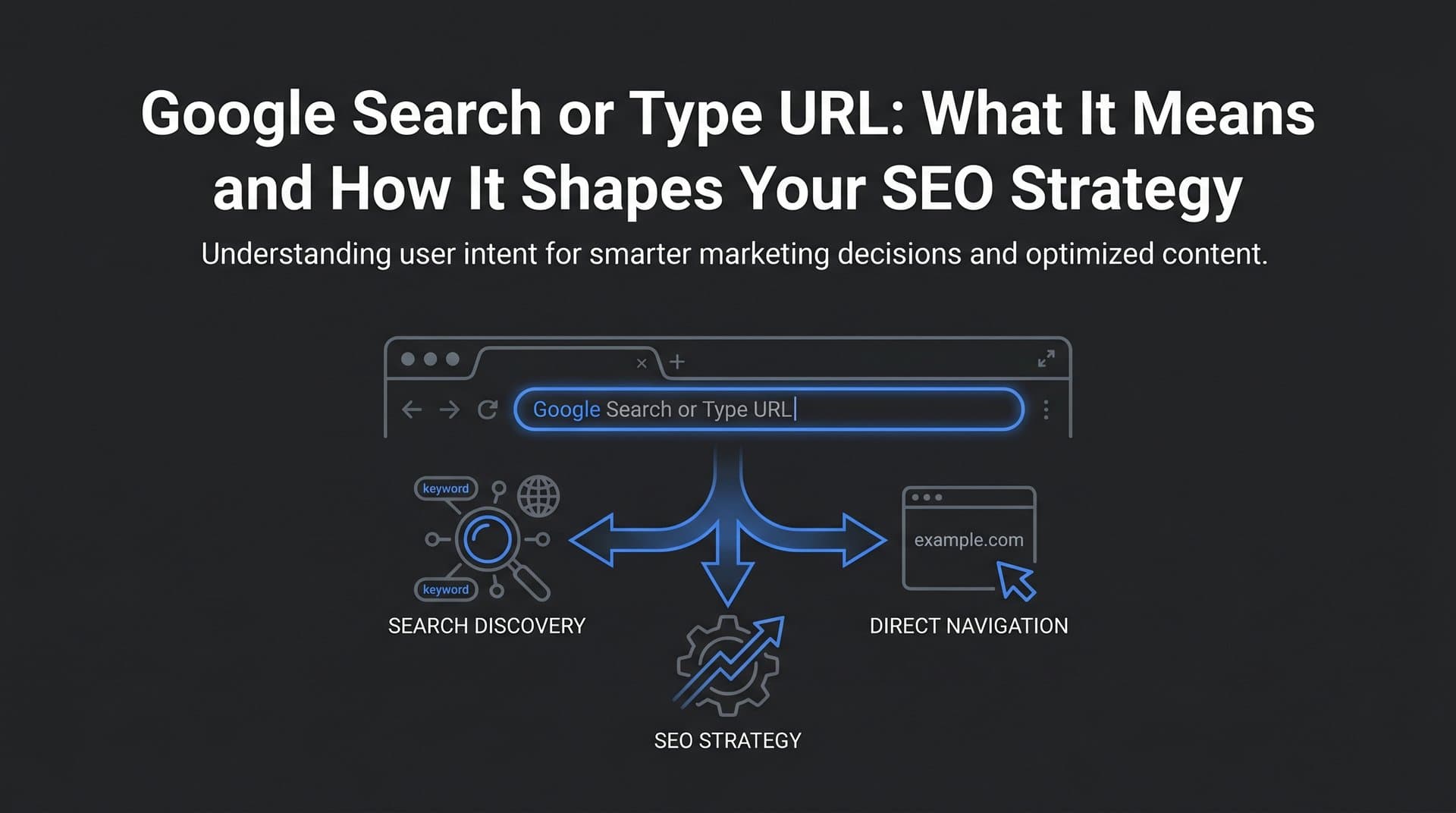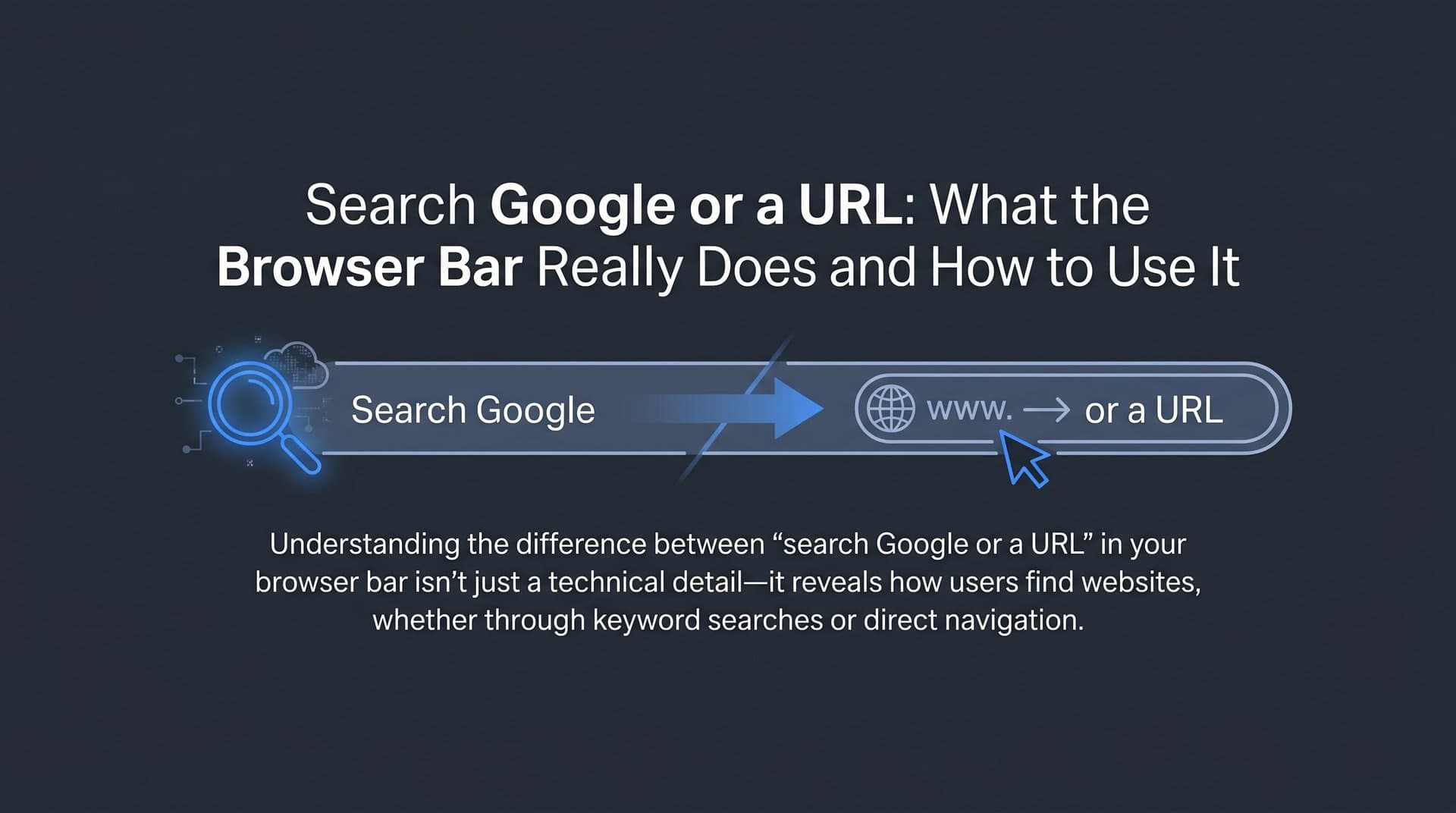
You've seen it thousands of times. That soft gray text sitting in Chrome's address bar: Search Google or type a URL. It's one of the most viewed prompts on the internet, appearing in front of billions of people every single day. And yet, most users never stop to think about what it actually means, let alone how to use it strategically.
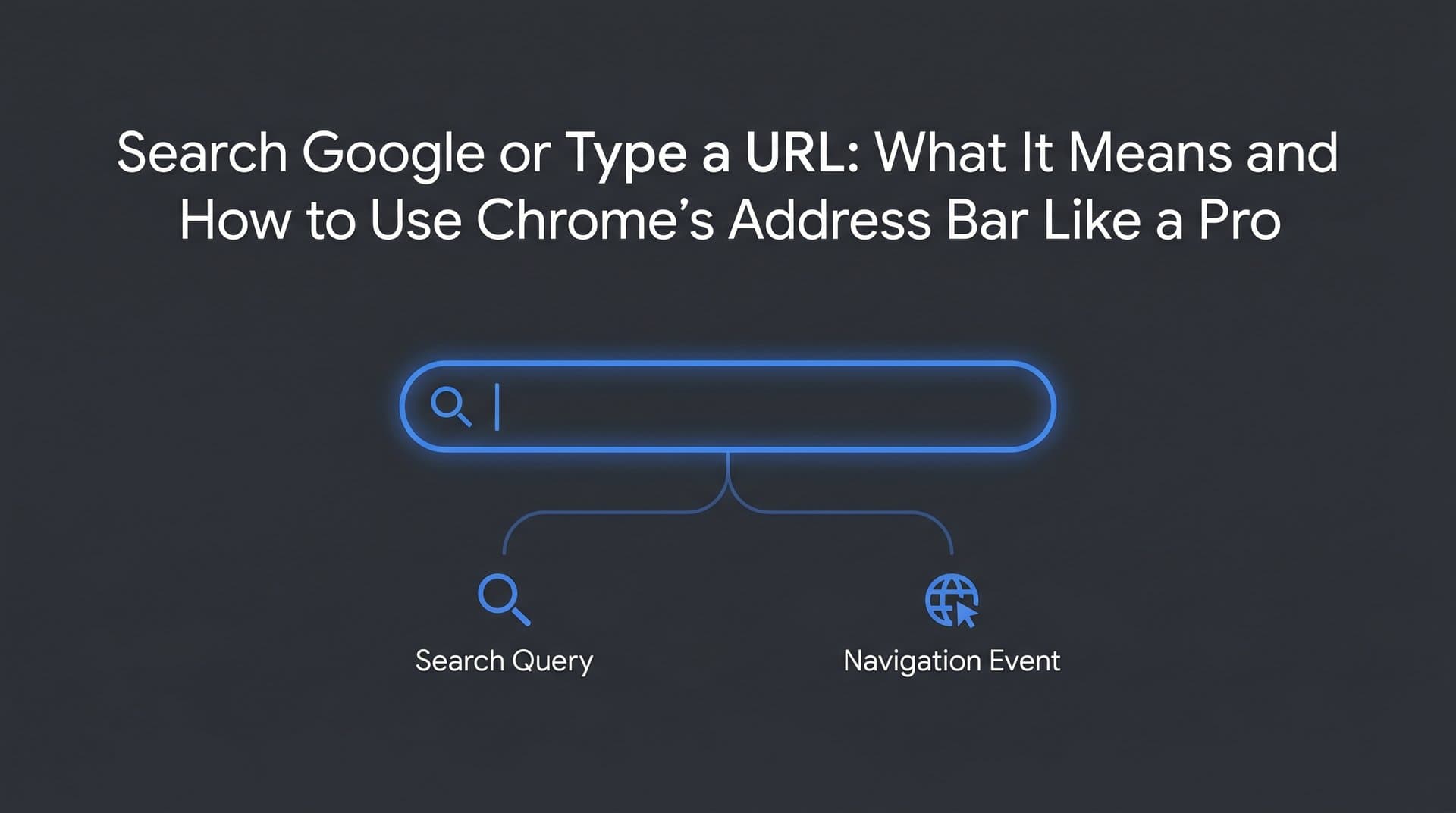
For casual browsers, it doesn't matter much. But if you're a marketer, founder, or agency professional whose business depends on search visibility, understanding what happens the moment someone types into that bar is surprisingly important. Every keystroke is either a navigation event or a search query, and the difference between the two has real implications for your traffic data, your brand visibility, and your content strategy.
This article breaks down exactly how Chrome's address bar works, what happens behind the scenes when someone searches versus navigates, and why the rise of AI-powered search is making this conversation more relevant than ever. Whether you want to browse smarter or market smarter, there's something here for you.
The Omnibox: How Chrome Unified Search and Navigation
Before Chrome launched in 2008, most browsers kept things separate. You had an address bar for typing URLs and a dedicated search box for querying Google. They served different purposes, lived in different places, and required different mental modes. Chrome changed that entirely by introducing the omnibox, a single unified input field that handles both functions at once.
The name "omnibox" reflects its ambition: one box to rule them all. Type a website address and you go there. Type a question or a few keywords and Chrome fires off a Google search. The prompt "Search Google or type a URL" is simply Chrome's way of reminding you that both options exist in the same space.
This was a genuinely significant UX decision. Merging the two inputs reduced friction, simplified the browser interface, and made Chrome feel faster to use. It also trained an entire generation of internet users to treat the address bar as a search bar, which has had lasting effects on how people navigate the web. Understanding search intent in SEO starts with recognizing this fundamental shift in user behavior.
The two core actions the omnibox supports are distinct:
Direct Navigation: When you type a complete URL like trysight.ai or google.com, Chrome recognizes the pattern and takes you directly to that site. No search engine involved. No results page. Just the destination.
Search Query: When you type anything that doesn't match a URL pattern, Chrome treats it as a search query and sends it to your default search engine. For most users, that's Google. The query gets passed to Google's search endpoint and you land on a results page.
Chrome uses a set of heuristics to decide which mode applies. If your input contains spaces, lacks a recognizable top-level domain, or doesn't follow URL conventions, it gets treated as a search. If it looks like a web address, Chrome navigates directly. Simple in concept, but the edge cases get interesting, which brings us to what's actually happening under the hood.
Searching vs. Navigating: What Happens the Moment You Press Enter
The difference between typing a URL and typing a search query might feel minor from a user perspective, but the technical flows are completely different.
When you type a URL and press Enter, Chrome initiates a DNS lookup. Your browser contacts a Domain Name System server to translate the human-readable domain name into an IP address, then establishes a connection to the web server at that address and loads the page. The whole process typically takes milliseconds. Critically, no search engine is involved at any point. If you're curious about how search engines find and process pages on the other side of that connection, understanding how search engines discover new content provides useful context.
When you type a search query, Chrome constructs a request to your default search engine's endpoint. For Google, that looks something like google.com/search?q=your+query+here. Google receives the query, processes it, and returns a search results page. Your query is logged, your intent is analyzed, and the results are ranked accordingly.
Here's where Chrome adds a layer of intelligence: autocomplete predictions. As you type, Chrome surfaces suggestions drawn from multiple sources including your browsing history, saved bookmarks, and popular or trending searches. These predictions appear in a dropdown beneath the omnibox and are designed to anticipate what you're looking for before you finish typing.
This is where common user confusion tends to emerge. Consider these scenarios:
Typing "amazon" without ".com": Chrome may recognize this as a popular domain and suggest amazon.com as a direct navigation option. But if you just press Enter without selecting the suggestion, Chrome might treat "amazon" as a search query instead, sending you to Google results for Amazon rather than the site itself.
Typing a misspelled URL: If you type gogle.com, Chrome may attempt to navigate there, fail, and then offer to search for it instead. Behavior varies depending on Chrome's settings and whether the domain actually resolves.
Typing partial URLs: Something like "docs.google" might trigger autocomplete to suggest the full URL, but without the suggestion, Chrome treats it as a search query.
The practical takeaway: if you want to navigate directly to a site, always include the full domain with its TLD. If you want to search, just type naturally and let Chrome handle the rest. The omnibox is smart, but being deliberate about your input saves time and avoids unexpected detours.
Power-User Shortcuts That Most People Never Discover
Most people use the omnibox for two things: typing URLs and running searches. But Chrome has built in a set of features that turn the address bar into a genuinely powerful productivity tool, and most users never find them.
Tab Search with @tabs: Type @tabs in the omnibox followed by a keyword, and Chrome will search across your currently open tabs. If you're a heavy tab user with dozens of pages open, this is a game-changer. Instead of scanning through a crowded tab bar, you can find and switch to any open tab in seconds.
Custom Search Engine Shortcuts: Chrome allows you to set up custom search engines with keyboard shortcuts. For example, you could configure "yt" to search YouTube directly, so typing yt lo-fi beats in the omnibox sends you straight to YouTube search results. Go to Chrome Settings, then Search Engine, then Manage Search Engines to set these up. Once configured, they save significant time for anyone who searches the same sites repeatedly.
Site-Specific Search via Tab: If you've visited a site that supports OpenSearch (which includes most major platforms), Chrome learns its search functionality. Type the site name in the omnibox, wait for Chrome to suggest "Search [Site]," then press Tab. Now you can search within that site directly from the address bar without visiting it first.
Site Search Operator: For more deliberate site-specific searching, use Google's site: operator directly in the omnibox. Typing site:trysight.ai content strategy as a search query will return Google results only from that domain. This technique is also valuable when you want to check your position in Google search for specific pages on your site.
Privacy Settings for Autocomplete: If you're concerned about Chrome's autocomplete surfacing sensitive browsing history, you can manage this under Settings, then Sync and Google Services, then Autocomplete Searches and URLs. Disabling this stops Chrome from sending partial queries to Google as you type, which some users prefer for privacy reasons. The tradeoff is slower, less predictive suggestions.
These shortcuts are available to anyone using Chrome, but they're rarely documented in obvious places. Spending ten minutes configuring your omnibox shortcuts can meaningfully speed up your daily workflow.
The SEO Angle: How the Address Bar Affects Your Traffic Data
For marketers and founders, the omnibox isn't just a browsing tool. It's a window into how users find and reach your website, and understanding the distinction between search traffic and direct traffic is essential for making sense of your analytics.
When someone types your brand name into Chrome's omnibox and presses Enter without selecting a direct navigation suggestion, Chrome sends that as a Google search query. That means branded searches typed into the address bar still count as organic search traffic in Google Search Console. They generate impressions, clicks, and position data just like any other organic query. If you're seeing branded queries in your Search Console data, some of that traffic originated from users typing your name into the omnibox rather than a traditional search box. Tracking these organic search keywords is critical for understanding your brand's true search footprint.
On the other hand, when someone types your full URL directly, such as trysight.ai, and navigates without a search engine intermediary, that visit appears as direct traffic in tools like Google Analytics. Direct traffic is often misunderstood. It doesn't only mean someone typed your URL from memory. It can also include traffic from bookmarks, links in apps that don't pass referrer data, and some email client clicks. But genuine URL navigation from the omnibox is a meaningful component of it.
Why does this distinction matter? Because it affects how you interpret your data and where you invest in brand building. A strong direct traffic share often signals strong brand recognition: people know your URL and go there intentionally. A strong branded organic search share suggests people know your name but rely on Google to find you, which means your brand is present but your URL recall could be stronger. Investing in strategies to improve organic search ranking can help you capture more of this intent-driven traffic.
Autocomplete as a Visibility Signal: When users type partial brand names or related terms into the omnibox, Chrome's autocomplete suggestions influence which sites they end up visiting. If your brand or content consistently appears in autocomplete, it reinforces visibility and click behavior. This is one reason why consistent content publishing and brand recognition efforts pay off beyond just ranking improvements. Brands that show up repeatedly in search build stronger autocomplete associations over time.
The address bar is, in many ways, the first moment of intent. Understanding how that intent gets routed, whether to your site directly, through organic search, or somewhere else entirely, helps you build a more accurate picture of your audience and your content's reach.
AI Search Is Changing What Happens After You Type
The omnibox experience is evolving. For most of Chrome's history, typing a query meant landing on a traditional search results page: ten blue links, some ads, maybe a featured snippet. That model is shifting rapidly.
Google's AI Overviews now appear at the top of many search results, providing synthesized answers generated by AI before users even see individual links. For users, this means faster answers. For brands, it means the path from a typed query to a website visit has a new obstacle: if the AI overview fully answers the question, many users won't scroll down to click through to source pages. Understanding what the search generative experience is helps marketers prepare for this fundamental shift.
But the change goes beyond Google. A growing number of users are bypassing Chrome's omnibox entirely and going directly to AI platforms like ChatGPT, Claude, and Perplexity to ask questions. These platforms don't return a list of links. They generate answers, and the brands and sources they reference in those answers receive a new kind of visibility, one that doesn't show up in traditional Search Console data at all. This trend of AI replacing Google search traffic is accelerating faster than most marketers realize.
This is the core idea behind GEO, or Generative Engine Optimization. Just as SEO is the practice of optimizing content to rank in traditional search engines, GEO is the practice of optimizing content so that AI models reference your brand, products, and expertise when answering relevant queries. The signals that influence AI citations are still being understood, but publishing authoritative, well-structured content that clearly establishes your brand's expertise in a topic area is a strong foundation. Our comprehensive AI search engine optimization guide covers these emerging strategies in detail.
For marketers and founders, this creates a new tracking challenge. Your Google Search Console tells you how you're performing in traditional search. Your analytics platform tells you where your traffic comes from. But neither tool tells you whether ChatGPT is recommending your product, whether Claude mentions your brand when users ask about your category, or whether Perplexity is citing your content in its summaries.
That gap in visibility is significant. Users are increasingly getting answers from AI platforms without ever visiting a search results page, which means brands that aren't tracking their AI visibility are missing a meaningful portion of how they're being discovered and described. The address bar used to be the beginning of a predictable journey. Now it's the entry point to a much more fragmented landscape, and staying visible across all of it requires a more comprehensive approach to search strategy.
Putting It All Together: From the Address Bar to Your Growth Strategy
The "Search Google or type a URL" prompt is easy to overlook. It's background noise, part of the furniture of daily internet use. But as we've covered, it represents two fundamentally different user behaviors with distinct implications for how traffic flows, how brands are discovered, and how content strategy should be built.
The omnibox is both a navigation tool and a search gateway. Every query typed into it is either a direct vote of confidence in your URL or a search event that routes through Google's algorithm. Branded searches from the address bar count as organic traffic. Direct URL navigation signals brand recognition. Autocomplete behavior shapes which sites users end up visiting. And increasingly, the queries users type, whether in Chrome or directly into AI platforms, are being answered by generative AI rather than traditional search results.
For marketers and founders, the strategic response is clear: optimize for the full picture. That means publishing consistent, high-quality content that builds both traditional search rankings and AI model familiarity with your brand. It means understanding your analytics well enough to distinguish between direct and organic traffic. And it means tracking your visibility not just in Google, but across the AI platforms that are increasingly shaping how users get answers.
Stop guessing how AI models like ChatGPT and Claude talk about your brand. The most forward-thinking brands are already monitoring their presence across AI platforms, identifying content gaps, and publishing SEO and GEO-optimized content that ensures they show up wherever users are searching. Start tracking your AI visibility today and see exactly where your brand appears across top AI platforms, so you can build a content strategy that works for every version of the address bar experience.