To submit a sitemap to Google, open your verified Google Search Console property, go to Indexing > Sitemaps, enter your sitemap URL (usually yourdomain.com/sitemap.xml), and click Submit. Then add a Sitemap: line to your robots.txt so every crawler can find it. Google's old ping URL was retired in 2023, so Search Console, robots.txt, and accurate lastmod dates are now the supported ways to keep Google informed.
Why Bothering With a Sitemap Still Matters for SEO

There's a common myth that Google magically finds every page on the internet. Google's crawlers are sophisticated, but they discover the web mainly by following links. If a page isn't well-linked or is buried deep in your site, it can easily get missed.
Think of your website as a new city. Without a map, a visitor might find the main streets but miss the side streets and entire neighborhoods tucked away. A sitemap is that map, handed directly to Google's crawlers.
The Direct Line to Google's Crawlers
When you submit a sitemap in Google Search Console, you're not just hoping Google finds your pages; you're giving it a clean, organized list of every URL you want indexed. This matters most for a few types of sites:
New Websites: If your site is brand new with very few external backlinks, it's practically invisible to crawlers. A sitemap gives them an immediate entry point.
Large Websites: Got an e-commerce store with thousands of product pages, or a blog with a massive archive? A sitemap ensures those deeper pages don't get overlooked.
Sites with Rich Media: If your site relies heavily on video, image, or news content, specialized sitemaps give Google extra context that helps you appear in those specific search results.
A sitemap doesn't just tell Google where your pages are; it can tell Google when they were last meaningfully updated via the
lastmodfield. Google uses that date to prioritize recrawling, as long as it's consistently accurate.
Submitting a sitemap is about control. You take the guesswork out of discovery and open a direct line of communication about your site's structure. It's a foundational SEO task that pays dividends long after you hit "submit."
Google Sitemap Format: What Google Actually Reads
Before submitting, make sure your file is in a format Google accepts. Google supports standard XML sitemaps (the most common and most flexible), RSS 2.0 / Atom 1.0 feeds, and plain text files with one URL per line. A minimal XML sitemap looks like this:
<?xml version="1.0" encoding="UTF-8"?>
<urlset xmlns="http://www.sitemaps.org/schemas/sitemap/0.9">
  <url>
    <loc>https://www.yourdomain.com/blog/my-post</loc>
    <lastmod>2026-01-15</lastmod>
  </url>
</urlset>
A few format rules trip people up:
Use absolute, canonical URLs. Include the protocol and the exact hostname (
https://www.vshttps://) you want indexed. Don't list redirects, noindexed pages, or duplicates pointing to another canonical.UTF-8 encoding and escaped characters. Characters like
&in URLs must be written as&.lastmodis used;changefreqandpriorityare ignored. Google has stated it ignores the latter two, so focus on keepinglastmodtruthful (W3C date format, updated only when content meaningfully changes).Size limits: 50,000 URLs or 50MB uncompressed per file. Beyond that, split into multiple files and use a sitemap index (covered below).
Location and scope: A sitemap generally covers URLs at or below its own directory, so placing it at the site root (
/sitemap.xml) is the safest choice.
Your Guide to Manual Sitemap Submission
A manual submission is the quickest way to tell Google, "Here's my complete site structure." Here's exactly how to submit your sitemap in Google using Google Search Console (GSC).
Before you start, you need two things: a verified GSC property and the URL of your sitemap. Verification proves to Google that you own the site and have the authority to submit information about it. A Domain property (verified via DNS) covers all subdomains and protocols, which avoids scope problems later.
Next, find your sitemap URL. Most content management systems and SEO plugins generate one automatically: WordPress core uses /wp-sitemap.xml, Yoast uses /sitemap_index.xml, and Shopify, Wix, and Squarespace serve /sitemap.xml. If you need to build one, our complete guide on how to create a sitemap has you covered.
Locating the Sitemaps Report in GSC
Log into Google Search Console and select your property. In the left-hand navigation, open the "Indexing" section and click "Sitemaps."
This is your command center for sitemaps. It shows every sitemap you've submitted, its status, when Google last read it, and how many URLs it discovered.
At the top, under "Add a new sitemap," your domain is pre-filled. Paste the rest of your sitemap URL (e.g., sitemap.xml) into the text box and click "Submit."
That's it. This queues your sitemap for processing by Googlebot. While the interface has changed over the years, the core principle remains the same: as of May 2025, you still verify ownership, then head to the Sitemaps section to submit your sitemap.xml file. For a deeper dive, you can check out these additional insights on sitemap submissions.
Understanding the Status Messages
After you click "Submit," GSC processes the file and shows a status. This feedback tells you whether the submission worked or whether you have troubleshooting to do. Processing can take anywhere from minutes to a few days.
Success: Google processed your sitemap and can read the URLs inside. It's not a guarantee of indexing, but it confirms your file is correctly formatted and accessible.
Couldn't fetch: Google tried to retrieve the file and failed. It could be a server error, a firewall blocking Googlebot, or a typo in the URL. Confirm the URL loads in a browser and returns HTTP 200. Note that a freshly submitted sitemap sometimes shows this status briefly before it's processed.
Has errors: Google fetched the file but found problems inside it. Click the sitemap in the report to see the specific errors, typically invalid URLs or broken XML.
Pro Tip: Don't panic if you see a "Couldn't fetch" status right away. Sometimes server hiccups are temporary. Give it a few hours and try resubmitting. More often than not, the issue resolves itself without you needing to do a thing.
Managing Sitemaps for Large and Complex Websites
When you're running a large e-commerce store or a sprawling publisher site, a single, standard sitemap won't cut it. Once your URL count reaches the tens of thousands, you need a smarter strategy to submit sitemaps to Google. This is where sitemap index files come in.
A sitemap index file is a table of contents for your other sitemaps. Instead of one giant file, you break your site into smaller, logical sitemaps and list them all in a single index file. For any site at scale, this isn't optional.
The Power of Sitemap Index Files
Google sets clear limits: a single sitemap file can contain a maximum of 50,000 URLs and can't exceed 50MB (uncompressed). So if your website has 150,000 pages, you'll need at least three sitemap files. A single sitemap index can in turn reference up to 50,000 sitemaps. You can find more detail on these technical requirements in this thorough sitemap guide on spotibo.com.
Splitting sitemaps also gives you organizational clarity. A common and effective strategy is to segment them by content type:
One sitemap for all your product pages.
Another for your category and subcategory pages.
A dedicated sitemap for your blog articles and guides.
This makes troubleshooting much easier. Because Search Console reports indexed counts per sitemap, a drop in indexed product pages points you straight to the product sitemap.
This quick comparison highlights the different roles of the two main types of sitemaps.
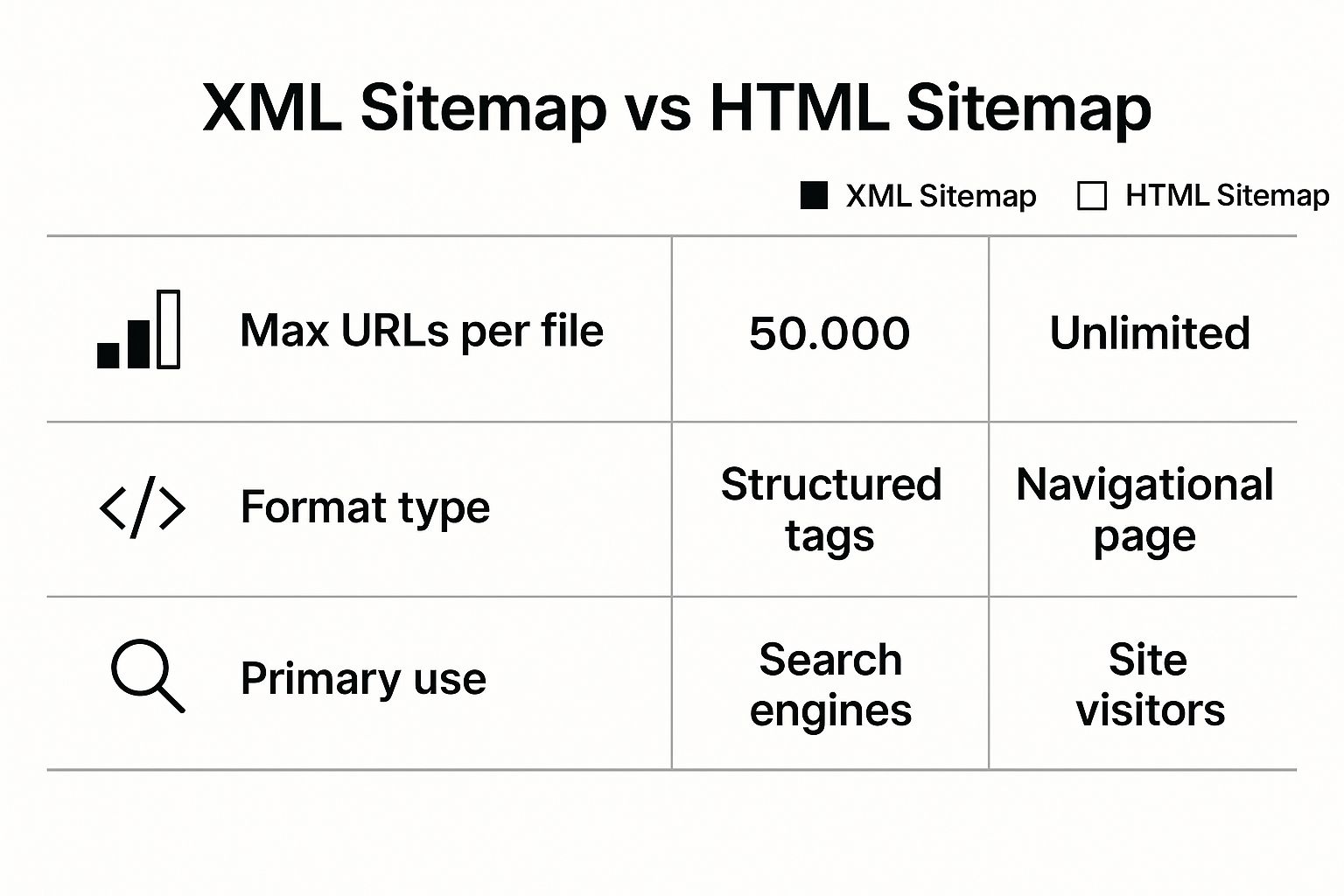
As you can see, XML sitemaps are built for search engines, while HTML sitemaps help human visitors find their way around your site.
Dynamic Sitemaps for Fresh Content
For sites where content changes constantly, such as news outlets or stores with daily inventory updates, a static sitemap goes stale almost immediately. A dynamic sitemap updates automatically whenever you add, remove, or edit a page.
This ensures Google always has the current map of your content. When a new product goes live or an article is published, the URL and a fresh lastmod date appear in the sitemap, signaling that there's something new to crawl. This is critical for getting fresh content discovered and indexed fast. Our guide on how to index a site on Google explains why that speed matters.
The right sitemap strategy depends on the size and nature of your website. Here's a quick breakdown.
Sitemap Management Strategies
Strategy | Best For | Key Benefit |
|---|---|---|
Single Static Sitemap | Small websites (<500 pages), personal blogs, portfolios | Simple to create and manage. |
Multiple Static Sitemaps | Medium sites (500-10,000 pages) with distinct content sections | Improved organization and easier troubleshooting. |
Single Dynamic Sitemap | Small to medium sites with frequent updates (e.g., active blogs) | Ensures Google always has the freshest content map. |
Sitemap Index File | Large sites (>10,000 pages), e-commerce stores, publishers | Scalable, organized, and simplifies submission to GSC. |
Choosing the right approach helps Google understand your site's structure more efficiently, which is the first step toward better indexing and visibility.
Key Takeaway: For any large website, stop submitting individual sitemaps. Create a single sitemap index file that points to all your smaller sitemaps and submit only that index file to Google Search Console. It cleans up your management process and gives Google a complete, organized overview in one go.
Automating Sitemap Submissions for Maximum Efficiency

Manually submitting your sitemap is fine when you're starting out, but it's not a sustainable workflow for an active website. Nobody should log into Search Console every time they publish a post or update a product page.
The good news: once Google knows your sitemap's location, it rechecks the file on its own. Automation is about making sure that location is always discoverable and that the file always tells the truth about what changed. Here are the methods that work today.
The "Set It and Forget It" Method: Robots.txt
The simplest way to automate discovery is to reference your sitemap in your robots.txt file. This file sits at the root of your domain (e.g., yourdomain.com/robots.txt) and is one of the first places crawlers look.
Open your robots.txt file and add this line, swapping in your own sitemap URL:Sitemap: https://www.yourdomain.com/sitemap.xml
The URL must be absolute, and you can list multiple Sitemap: lines if needed. This one-time change means Google, Bing, and other crawlers can find your sitemap without any manual submission.
Why the Google Sitemap Ping No Longer Works
Older guides recommend "pinging" Google by sending a GET request to http://www.google.com/ping?sitemap=FULL_URL_OF_SITEMAP whenever your sitemap changes. Google deprecated this endpoint in June 2023 and it stopped working later that year; requests now return a 404 error. Google found that most unauthenticated pings were not useful signals.
If your CMS, plugin, or deployment script still calls the ping URL, it's harmless but does nothing. Replace it with these supported approaches:
Accurate
lastmoddates: This is now Google's primary freshness signal from sitemaps. Update it only when the page's main content changes, not on every rebuild, or Google may learn to distrust it.The Search Console API: For custom-built sites, the
sitemaps.submitmethod of the Search Console API lets you programmatically submit or resubmit a sitemap for a verified property after a major deployment.IndexNow for other engines: Bing, Yandex, and several others accept instant URL notifications through the IndexNow protocol. Google does not currently use IndexNow, but it's worth implementing for broader coverage.
For individual high-priority URLs, the URL Inspection tool's "Request indexing" button is still the fastest manual option. We've covered that workflow in our guide on how to request a recrawl from Google.
A Quick Tip: Don't resubmit your sitemap every time you publish. Google already rechecks known sitemaps regularly, and repeated submissions won't make it crawl any faster. Resubmit only after structural changes, such as a migration or a new sitemap index.
Go All-In with True Automation Tools
For anyone managing multiple sites or tackling complex indexing challenges, dedicated tools like Sight AI are the final step in the automation journey. Sight AI's automated indexing features go beyond a static robots.txt entry by actively monitoring your sitemap.
This approach offers some serious advantages:
Instant Notifications: The moment a change is detected in your sitemap, the tool notifies search engines through their supported channels.
Intelligent Monitoring: These systems don't just submit your sitemap; they watch its status and flag potential issues before they can hurt your SEO.
A Single Dashboard: All your sitemap activity and indexing statuses are in one place, giving you a bird's-eye view without the manual check-ins.
Instead of reacting to indexing problems after the fact, you're proactively ensuring your content gets seen quickly, which frees you up to focus on creating great content. As Google's own documentation confirms, providing sitemaps via robots.txt or Search Console submission are both valid, and you can read more about their guidelines on developers.google.com.
Troubleshooting Common Sitemap Errors
So you submitted your sitemap, but now there's a red error message in Google Search Console. It's frustrating, but common, and these errors are usually straightforward to fix once you know what to look for.
Treat an error message as a specific clue from Google about exactly what needs attention. Most issues fall into a few categories.
Sitemap Could Not Be Read
This is the most common error, and it almost always points to an accessibility issue: Googlebot tried to visit your sitemap URL but couldn't retrieve the file.
First, check your robots.txt file. It's easy to accidentally add a Disallow rule that blocks Googlebot from the very sitemap you want it to see. Remove that rule or add a specific Allow directive for your sitemap URL.
Other culprits include a server misconfiguration, a non-200 status code (redirects or 5xx errors), or an aggressive firewall or bot-protection layer that blocks Google's crawlers.
The easiest first step? Open an incognito browser window and try to visit your sitemap URL directly. If you can't see the XML content, neither can Google.
URLs Not Accessible
This error means Google could read your sitemap file, but when it tried to visit the URLs listed inside it, it hit a wall. Google needs to be able to crawl the actual pages you're telling it about.
Here's your checklist:
Password Protection: Make sure the URLs in your sitemap aren't behind a login or on a staging server that requires authentication. This is a classic "oops" moment.
noindexTag: Check the source code of a few problematic pages. If you find a<meta name="robots" content="noindex">tag in the<head>section, that's your problem. You can't ask Google to index a page you're also telling it to ignore.robots.txtBlocks: Just like the sitemap file itself, individual pages or entire directories might be blocked in yourrobots.txtfile.
Fixing these access issues ensures that when Google reads your sitemap, it can follow through and crawl the content you've worked hard on.
Unsupported File Format
This one is about syntax. Your sitemap must be well-formed XML, and even a tiny mistake (a missing closing tag, a stray character before the XML declaration, or an unescaped ampersand (&) in a URL) can make the whole file fail.
The fastest diagnosis is a machine check. Run your file through an XML sitemap validator, which pinpoints the exact line and character causing the problem so you can fix the malformed code in seconds.
Once you've made the fix, head back to Google Search Console and resubmit it.
For a comprehensive look at the entire process from start to finish, our guide on submitting a sitemap to Google covers additional context and best practices.
Frequently asked questions

Is a sitemap important for SEO?
Yes, but indirectly. A sitemap is not a ranking factor, so having one won't boost positions on its own. Its value is discovery: if Google can't find a page, that page can't rank for anything. Sitemaps matter most for new sites with few backlinks, large sites with deep archives, and sites that publish or update content frequently. A small, well-linked site can be crawled fine without one, but there's no downside to submitting it.
How often should I resubmit my sitemap to Google?
Almost never. Once Google knows your sitemap URL, it rechecks the file on its own schedule. Resubmit only after major changes, such as a site migration, a new sitemap index structure, or fixing a large batch of errors. For everyday publishing, keep lastmod accurate and let Google pick up the changes. Remember that submitting a sitemap informs Google about URLs; it doesn't force a crawl or guarantee indexing.
What's the difference between HTML and XML sitemaps?
They serve different audiences. An XML sitemap is a machine-readable file written for search engines, listing URLs and metadata such as lastmod so crawlers like Googlebot can map your site. An HTML sitemap is a regular page on your website that helps human visitors browse your structure, like a table of contents. Bottom line: XML is for bots, HTML is for people. Google submission only applies to the XML (or RSS/text) version.
What format does Google require for a sitemap?
Google accepts XML sitemaps, RSS 2.0 or Atom 1.0 feeds, and plain text files with one URL per line. XML is the standard choice because it supports lastmod and image, video, and news extensions. Files must be UTF-8 encoded, use absolute canonical URLs, and stay under 50,000 URLs or 50MB uncompressed. See the format section above for a working example.
Why isn't Google indexing the pages in my sitemap?
Seeing URLs stuck in "Discovered - currently not indexed" means Google knows the page exists but hasn't prioritized crawling it. Common causes are thin or duplicate content, weak internal linking, or technical problems that stop Google from rendering the page. If your whole site is struggling, digging into why your website is not showing up on Google gives a more detailed troubleshooting path.
Ready to stop worrying about manual submissions and indexing errors? Sight AI automates this entire process. Our platform monitors your sitemap in real time, instantly notifies search engines of any changes, and ensures your content gets discovered and indexed faster. Start your 14-day free trial today.