You publish a new article, submit it to Google, and then... wait. Days pass. You check Search Console manually. Still not indexed. You check again the next day. Still nothing. A week later, you realize half your recent content hasn't been discovered by search engines at all.
This scenario plays out constantly for SEO teams managing content at scale. Manual indexing checks consume hours every week—time that could be spent on strategy, optimization, or competitive analysis. When you're responsible for dozens or hundreds of pages, clicking through Google Search Console tabs becomes unsustainable.
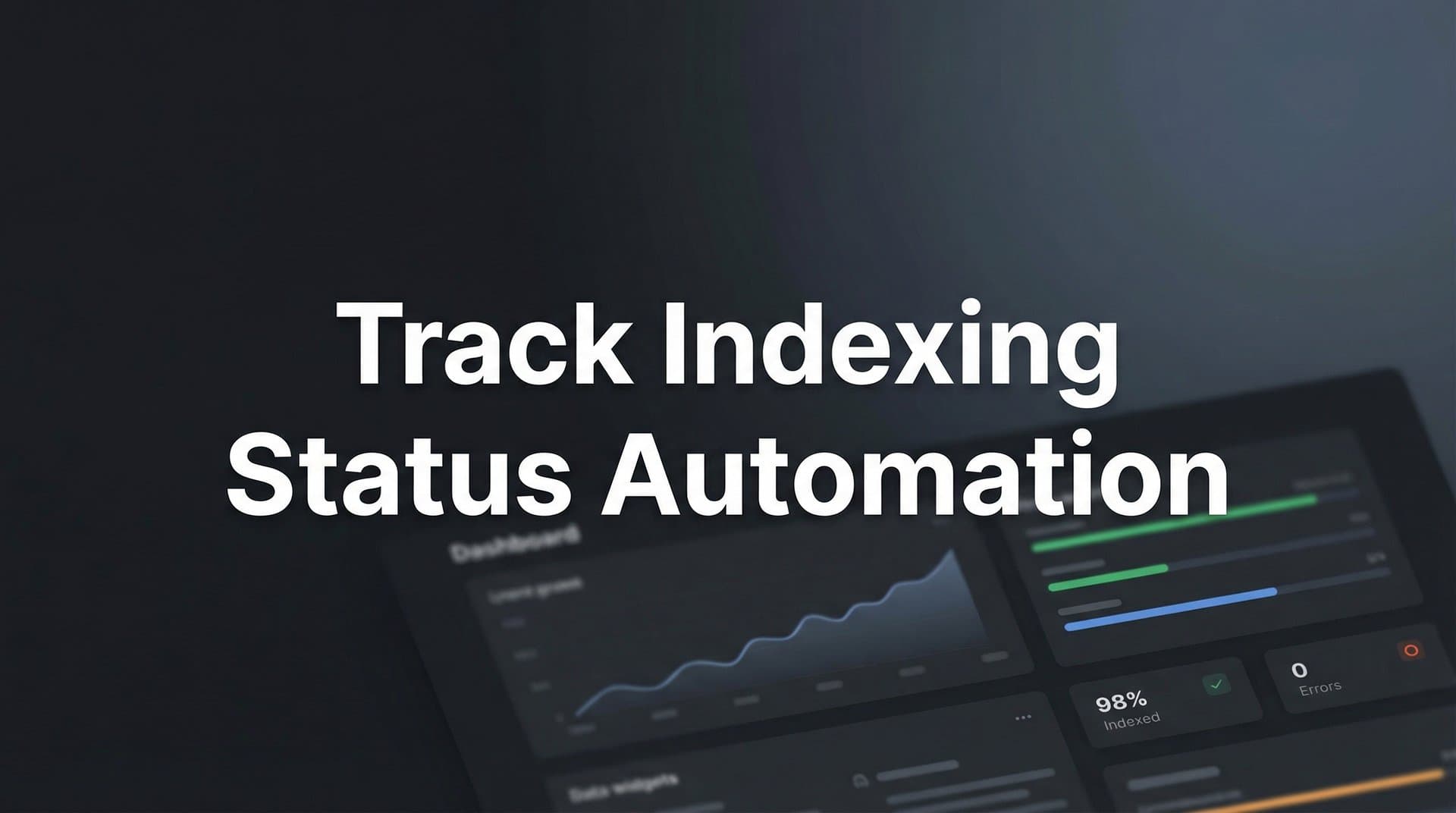
Track indexing status automation solves this by continuously monitoring which pages are indexed, flagging issues instantly, and giving you real-time visibility into your site's search presence. Instead of reactive troubleshooting, you get proactive alerts the moment something goes wrong.
This guide walks you through setting up automated indexing tracking from scratch, whether you're a solo marketer or managing enterprise-level content operations. By the end, you'll have a system that alerts you to indexing problems before they hurt your traffic.
Step 1: Audit Your Current Indexing Baseline
Before automating anything, you need to understand where you stand today. Think of this as taking a snapshot of your site's indexing health—you can't measure improvement without knowing your starting point.
Start by exporting your complete sitemap URLs. If you're using XML sitemaps, grab every URL you've submitted to search engines. If your site generates dynamic sitemaps, pull the full list of pages you expect to be indexed. This becomes your "should be indexed" reference list.
Next, head to Google Search Console and navigate to the Coverage report under Index. Export the full data set showing which pages are indexed, which have errors, and which are excluded. Cross-reference this against your sitemap URLs. The gap between what you submitted and what's actually indexed reveals your indexing problem areas.
Document your current manual checking process honestly. How often do you check indexing status? How long does it take? Which pages do you prioritize? Many SEO teams find they're spending 3-5 hours per week on manual indexing verification alone—time that compounds quickly across quarters.
Establish your baseline metrics clearly:
Total Pages: How many URLs exist on your site that should be discoverable?
Indexed Pages: How many are currently in Google's index according to Search Console?
Coverage Percentage: Your indexed pages divided by total pages. Industry benchmarks vary, but healthy sites typically see 85-95% coverage for priority content.
Problem Categories: Break down your excluded pages by reason—soft 404s, redirect chains, canonical conflicts, or crawl budget issues.
This baseline audit typically takes 2-3 hours for a medium-sized site, but it's essential groundwork. You're identifying not just what's wrong today, but establishing the metrics you'll track automatically going forward. Take screenshots of your current Coverage report—you'll want to compare against this baseline after automation is running. Understanding the full scope of content indexing automation benefits helps justify the time investment in this initial audit.
Step 2: Choose Your Automation Stack
The right automation approach depends on three factors: your site's scale, your team's technical capabilities, and your budget. There's no universal best solution—only the best fit for your specific situation.
The Google Search Console API represents the free, flexible option. It gives you programmatic access to the same indexing data you see in the Search Console interface. You can query indexing status, coverage issues, and sitemap data automatically. The trade-off? You're building and maintaining the automation yourself. This works well if you have development resources and want complete control over your monitoring logic.
Third-party SEO platforms offer pre-built indexing monitoring as part of broader toolsets. These solutions handle the technical complexity for you but typically come with monthly subscription costs. They're worth considering if you need indexing tracking alongside other SEO functions like rank tracking or backlink monitoring. Many teams explore website indexing automation tools to find the right balance of features and cost.
Integrated platforms like Sight AI's indexing features combine automated monitoring with proactive indexing requests. Instead of just tracking status, these tools actively help get your content indexed faster through IndexNow integration and automated sitemap updates. This approach makes sense when you're publishing content frequently and want both visibility and acceleration.
Consider IndexNow integration as part of your stack. IndexNow lets you notify search engines instantly when content publishes or updates, rather than waiting for them to discover changes through regular crawling. Bing, Yandex, and other search engines support IndexNow, making it a valuable complement to Google-focused tracking.
Decide on your monitoring frequency based on publishing volume:
Real-time Monitoring: For high-volume publishers pushing multiple articles daily. You want to know within hours if something isn't indexing.
Daily Checks: The sweet spot for most content operations. Catches issues quickly without overwhelming your team with alerts.
Weekly Checks: Sufficient for slower-publishing sites or those focused on evergreen content updates.
Budget realistically. Custom API implementations require developer time upfront and ongoing maintenance. Third-party tools range from basic monitoring at lower price points to enterprise platforms with comprehensive features. Evaluate based on your total cost of ownership, including the time saved by not checking manually.
The goal is choosing a stack you'll actually use consistently. A sophisticated system that requires constant maintenance often gets abandoned, while a simpler automated solution that just works delivers more value long-term.
Step 3: Configure API Access and Authentication
If you're building custom automation with the Google Search Console API, authentication setup is your critical first step. This process grants your scripts or applications permission to access your Search Console data programmatically.
Start by creating a service account through the Google Cloud Console. Service accounts work well for automation because they don't require interactive user login—your scripts can authenticate automatically using credentials. Navigate to the Google Cloud Console, create a new project specifically for your indexing automation, and enable the Search Console API for that project.
Generate service account credentials by creating a new service account within your project. Give it a descriptive name like "indexing-monitor-service" so you remember its purpose later. Download the JSON key file that contains your authentication credentials. Store this file securely—it's essentially the password that grants API access.
Configure OAuth 2.0 authentication by adding your service account email address as a user in Google Search Console. Go to your Search Console property settings, add the service account email as a user with at least "Full" permissions, and verify the access is active. Without this step, your API calls will fail with permission errors even though your credentials are valid.
Test your API connection with a simple query before building complex automation. Write a basic script that authenticates using your service account credentials and requests the list of sitemaps for your property. If this returns data successfully, your authentication is working correctly. If you get errors, double-check that your service account has been added as a user in Search Console and that the API is enabled in your Cloud Console project.
Store credentials securely using environment variables or a secrets management system. Never commit credential files to version control repositories. If you're using cloud functions or serverless automation, use the platform's built-in secrets management. If you're running scripts on servers, restrict file permissions so only the automation user can read the credentials. Teams using content indexing automation software often find these security configurations handled automatically.
Set up token refresh automation because OAuth tokens expire periodically. Most API client libraries handle token refresh automatically, but verify this is configured correctly in your implementation. You don't want your monitoring to stop working silently because a token expired and wasn't renewed.
Document your authentication setup clearly. Future you (or future team members) will need to understand how credentials are managed, where they're stored, and how to rotate them if needed. Include the service account email, the Cloud Console project name, and any relevant permissions or scopes configured.
Step 4: Build Your Automated Monitoring Workflow
With API access configured, you're ready to build the actual monitoring system that checks indexing status automatically. This workflow becomes the engine that tracks your site's search visibility without manual intervention.
Create a URL list management system that stays current as your site evolves. Rather than maintaining a static list, implement dynamic sitemap parsing that pulls URLs directly from your XML sitemaps. This ensures your monitoring automatically includes new pages as they're published and removes pages that are deprecated. Parse your sitemap files programmatically, extract all URLs, and use this as your monitoring target list. Implementing sitemap automation for faster indexing streamlines this entire process.
Set up scheduled checks using the automation tool that fits your infrastructure. If you're running on cloud platforms, use services like AWS Lambda, Google Cloud Functions, or Azure Functions to execute your monitoring script on a schedule. These serverless options are cost-effective for periodic tasks. If you're managing your own servers, configure cron jobs to trigger your monitoring script at your chosen frequency—daily at 3am works well for most teams.
Define clear indexing status categories that match Google Search Console's classification system:
Indexed: Page is successfully in Google's index and can appear in search results. This is your success state.
Crawled - Not Indexed: Google visited the page but chose not to include it in the index. This often indicates content quality issues or duplicate content concerns.
Excluded: Page is intentionally not indexed due to directives like noindex tags, robots.txt blocks, or canonical tags pointing elsewhere.
Error: Technical problems prevent indexing, such as server errors, soft 404s, or redirect chains.
Implement change detection to track status transitions over time. Store each monitoring run's results in a database or structured log file. Compare current status against previous status for each URL. When a page transitions from "Indexed" to "Error," that's a critical alert. When a page moves from "Crawled - Not Indexed" to "Indexed," that's a success to track.
Build in retry logic for API calls because network issues or rate limits can cause temporary failures. If an API request fails, wait a few seconds and retry up to three times before marking it as a genuine error. This prevents false alerts from transient connectivity problems.
Structure your data storage to support historical analysis. Don't just track current status—maintain a time-series record showing how indexing status evolved. This lets you answer questions like "How long does it typically take for new pages to get indexed?" or "Did that site migration cause indexing problems?"
The goal is creating a workflow that runs reliably without supervision, captures comprehensive status data, and provides the foundation for alerting and reporting you'll build in the next step.
Step 5: Set Up Alerts and Reporting Dashboards
Monitoring data becomes valuable when it triggers action. Your alert system transforms passive data collection into active problem detection that helps you respond to issues immediately.
Configure instant alerts for critical issues that demand immediate attention. When pages that were previously indexed suddenly disappear from the index, you need to know within hours, not days. Set up notifications that trigger when any page transitions from "Indexed" to "Error" or when your overall indexed page count drops by more than a threshold percentage—say 5% in a single day.
Choose your alert delivery method based on how your team works. Email works for less urgent notifications. Slack or Microsoft Teams channels are better for issues that need quick response. For critical problems affecting high-traffic pages, SMS alerts ensure someone sees the issue even outside work hours. Many teams use tiered alerting: Slack for moderate issues, SMS for severe problems affecting revenue-generating pages.
Build a dashboard showing indexing health trends over time. Visualize your key metrics—total indexed pages, coverage percentage, and issue counts by category. Line graphs showing these metrics over weeks or months reveal patterns that individual data points miss. You'll spot gradual coverage erosion that would be invisible in daily checks. Comprehensive website indexing status monitoring makes these dashboards actionable rather than just informational.
Create automated weekly reports for stakeholders who need visibility but not real-time alerts. These reports should summarize the week's indexing performance: pages newly indexed, persistent issues, coverage percentage trends, and any significant changes. Include context—if coverage dropped, explain whether it's due to new pages not yet indexed or existing pages becoming deindexed.
Set threshold-based notifications that trigger only when metrics cross defined boundaries. Alert if coverage drops below 90% for priority content categories. Notify the team if more than 10 pages show server errors. Flag situations where new pages haven't been indexed within 72 hours of publication. Threshold-based alerts reduce noise while ensuring genuine problems get attention.
Implement alert suppression for known issues you're already addressing. If you're aware of a technical problem affecting 50 pages and working on a fix, suppress alerts for those specific URLs so your team isn't bombarded with notifications about problems they're already handling. Resume normal alerting once the issue is resolved.
Build custom views for different team roles. Content creators need to see indexing status for their recent articles. Technical SEO specialists need detailed error breakdowns and crawl budget metrics. Executives want high-level coverage trends and comparisons to previous periods. Your dashboard system should support these different perspectives without overwhelming anyone with irrelevant data.
Test your alerting system thoroughly before relying on it. Deliberately create conditions that should trigger alerts—temporarily block a page with robots.txt, for example—and verify notifications fire as expected. False confidence in broken alerting is worse than no alerting at all.
Step 6: Integrate with Your Content Publishing Workflow
The most powerful automation doesn't just monitor—it actively helps content get indexed faster by connecting monitoring to your publishing process. This final step closes the loop between content creation and search visibility.
Trigger automatic IndexNow pings when new content publishes. IndexNow is a protocol that lets you notify search engines instantly about new or updated URLs, rather than waiting for them to discover changes through regular crawling. Configure your CMS or publishing pipeline to send IndexNow notifications automatically whenever content goes live. This works particularly well for time-sensitive content where faster indexing translates directly to competitive advantage.
Connect CMS publishing events to your indexing tracker so monitoring begins immediately for new pages. When a new article publishes, automatically add its URL to your monitoring list without manual intervention. This ensures you're tracking every piece of content from publication, making it easy to measure time-to-index as a performance metric. Teams using content publishing automation for CMS platforms often have this integration built in.
Monitor time-to-index for new pages as a key performance indicator. Track the hours or days between publication and successful indexing. This metric reveals whether your site has strong crawl priority with search engines. Improving time-to-index often correlates with better overall organic performance because your content starts competing for rankings sooner.
Create feedback loops that surface indexing status directly in your content team's workflow. Add a dashboard widget to your CMS showing recent articles' indexing status. Send automated notifications to content creators when their articles get indexed successfully. When indexing problems occur, route alerts to the people who can fix them—technical issues go to developers, content quality issues go to editors.
Implement pre-publication checks that catch common indexing blockers before content goes live. Scan for noindex tags accidentally left in production content. Verify canonical tags point to the correct URL. Check that the page is allowed in robots.txt. These automated checks prevent self-inflicted indexing problems that waste time troubleshooting later.
Use indexing data to inform content strategy decisions. If certain content types consistently index faster or achieve higher coverage rates, that signals what search engines value from your site. If specific categories show persistent indexing problems, investigate whether those topics align with your site's established authority. Developing solid content indexing automation strategies helps you make these decisions systematically.
Build automation that handles routine indexing acceleration tasks. When a page hasn't indexed within your expected timeframe, automatically submit it via Google Search Console's URL inspection tool. When sitemap files update, trigger resubmission to search engines without manual intervention. These small automations compound into significant time savings across hundreds of content pieces.
Maintaining Momentum: Your Automated Indexing System in Action
With automated indexing tracking in place, you'll catch problems in hours instead of weeks. The manual checking that once consumed half a workday now happens automatically while you focus on strategy and optimization.
Your implementation checklist: baseline audit complete, automation stack selected, API access configured, monitoring workflow running, alerts active, and CMS integration connected. Each component works together to create a system that's greater than the sum of its parts.
Start with daily checks and adjust frequency based on your publishing volume. High-velocity content operations benefit from more frequent monitoring, while sites publishing weekly can check less often. The goal isn't just knowing your indexing status—it's having confidence that every piece of content you publish gets discovered by search engines and AI models alike.
Review your automation's performance monthly. Are alerts firing appropriately, or are you getting too many false positives? Is your coverage percentage improving now that you catch issues faster? Use these insights to refine thresholds, adjust monitoring frequency, and optimize your workflow.
The real value emerges over time. You'll develop intuition about your site's indexing patterns. You'll spot problems before they impact traffic. You'll have data to support technical SEO investments. Most importantly, you'll reclaim hours every week that were spent on manual checking.
Stop guessing how AI models like ChatGPT and Claude talk about your brand—get visibility into every mention, track content opportunities, and automate your path to organic traffic growth. Start tracking your AI visibility today and see exactly where your brand appears across top AI platforms.