
Ever felt that sinking feeling of being lost on a cluttered webpage, knowing the answer you need is buried somewhere in a wall of text? We've all been there. The quickest way to cut through the noise and search a word on a website is the browser's built-in "Find" tool. Just hit Ctrl+F on Windows or ⌘+F on a Mac. This simple command instantly highlights every single mention of your term on the page you're viewing.
Why Mastering Website Search Is a Superpower

This guide goes beyond the basics. We're talking about how finding information efficiently is a genuine superpower for students, researchers, and really, anyone who uses the internet. Feeling lost on a dense page isn't just a minor annoyance; it's a critical friction point that gets in the way of how we learn and consume information online.
Knowing these search skills helps you slice through the clutter, validate facts, and get what you need in seconds, not minutes. It’s the difference between a frustrating dead-end and a successful, productive online journey.
The Power of Discoverability
Content discoverability isn’t just about what Google shows you—it’s about what you can find once you actually land on the page. Search behavior is deeply ingrained in how we use the web. In fact, studies show that a staggering 68% of all online journeys begin with a search query, whether that's on Google or an internal site search box.
Since we're all conditioned to scan and evaluate text quickly, your ability to pinpoint specific information is what matters most. This report on current SEO statistics from Link Assistant dives deeper into these user behaviors.
This skill is essential because not all information is made equally visible. While website owners strive for strong discoverability, their success depends on more than just high search engine rankings. It's also about a site's internal structure and how well search engines can crawl and understand the content. For more on that, you can check out our guide on what website indexing is and how it works.
The ability to instantly find a specific term or phrase on a webpage isn't just a convenience—it's a core competency for digital literacy. It empowers you to verify information, conduct research more effectively, and navigate complex documents with confidence.
Ultimately, mastering how to search a word on a website puts you firmly in control. It transforms a passive reading experience into an active, efficient quest for knowledge.
The Instant Method for Finding Words on Any Page

Before we get into the more complex, site-wide search tools, let's start with the one you already have at your fingertips: your browser's built-in "Find" command. This is your first line of attack for instantly scanning a single webpage.
Think of it as your foundational skill. It's perfect for quickly locating a specific quote in a long article or zeroing in on a key detail on a cluttered product page. This is the quickest way to search a word on a website when you know you're on the right page.
Unlocking the Power of Find on Page
The magic starts with a simple keyboard shortcut. Just press Ctrl+F on a Windows machine or ⌘+F on a Mac. A small search bar will pop up, usually tucked into the top-right corner of your browser window.
As you start typing, the browser highlights every match on the page in real-time. This immediate visual feedback is what makes it so useful for rapid scanning. For instance, if you're on a recipe page and just need the measurement for "vanilla extract," this command will take you right there, no scrolling required.
The browser's 'Find' feature is more than a simple search box; it's a navigational tool. It transforms a static page into an interactive document, allowing you to cycle through every relevant mention without manually scrolling and scanning.
You'll also notice a counter, something like "1 of 7," showing how many times your term appears. You can use the little arrows next to the search box or just hit Enter to jump from one instance to the next, letting you quickly see each mention in its original context.
For a quick reference, here are the keyboard shortcuts you'll need for the 'Find' command across different systems and browsers. Mastering these can save you a ton of time.
Browser Find Command Keyboard Shortcuts
| Operating System | Primary Shortcut | Navigate to Next Match | Navigate to Previous Match |
|---|---|---|---|
| Windows/Linux | Ctrl + F | Enter or F3 | Shift + Enter or Shift + F3 |
| macOS | ⌘ + F | Enter or ⌘ + G | Shift + Enter or Shift + ⌘ + G |
Having these shortcuts in your back pocket turns a tedious manual search into a task that takes just a few seconds.
Navigating Mobile and Common Hurdles
Using this feature on your phone is just as simple, but the option is usually tucked away in a menu. For both Chrome and Safari on a smartphone, the process is pretty similar:
- Tap the Share button or the three-dot menu icon.
- Scroll through the list of actions until you see "Find on Page" or "Find in Page."
- This brings up a search bar where you can type your word and navigate through all the matches on the page.
Ever search for a word you know is on the page, only for the find tool to come up empty? This is a classic issue with pages that use "lazy loading," where more content only appears as you scroll down. The fix is easy: just scroll all the way to the bottom of the page to make sure everything has loaded, then try your search again.
How to Search an Entire Website with Precision

When you need to track down a specific term across an entire domain, the simple "Find" command just won't cut it. Your search has to go deeper than a single page, and that means moving beyond your browser's built-in tools.
Your first stop should usually be the site's own search bar. A good one is a lifesaver, offering features like autocomplete and smart suggestions that guide you right to what you need. A frustrating one, however, can feel like shouting into the void, returning irrelevant results or—even worse—nothing at all.
This is where you can take matters into your own hands.
Leveraging Search Engines for Site-Wide Searches
The real power move is to turn a major search engine like Google or Bing into your personal, high-powered search tool for any website out there. The trick is using a special command called a search operator, and the most useful one for this job is site:.
This simple command tells the search engine to restrict its query to one specific website. For instance, if you were trying to find every mention of an "annual report" on a company's website, you'd just type this into the Google search bar:
site:example.com "annual report"
This little trick completely bypasses a site's potentially weak internal search and puts the full force of Google's indexing capabilities to work for you. It's perfect for finding every article a specific journalist has written on a news site or digging up that one policy document you know exists but can't find through the normal navigation.
The
site:operator is like having a universal key. It unlocks the ability to search any indexed website with the precision and power of the world's best search algorithms, turning a frustrating hunt into a simple query.
Here’s an example of how this looks in practice, showing a search for "customer support" limited to a single domain. The results are a clean, focused list of only the pages from that specific website containing your search term. It’s an incredibly effective method for exploring large or poorly organized sites.
Combining Operators for Advanced Precision
You can get even more granular by combining operators. This is where you can truly master how to search a word on a website and filter out all the noise.
- Exact Phrases: Use quotation marks (
" ") to search for a precise phrase. Something likesite:techblog.com "data privacy policy"will only return pages with that exact sequence of words. - Excluding Words: Pop a minus sign (
-) in front of a word to exclude any pages that contain it. For example,site:recipes.com healthy snacks -nutswould find snack recipes that don't mention nuts.
These tools are more powerful than ever. As of July 2025, Google still commands about 89.57% of global search share, making its site: operator an absolutely essential tool for deep-diving into web content.
While this method is fantastic for pinpointing existing content, understanding the full scope of a website requires different techniques. If you need a complete map of every page, you can learn how to find all pages on a website in our detailed guide. This combination of user-side searching and site-wide analysis gives you a complete picture.
Advanced Search Techniques for Power Users
When a simple site: search doesn't cut it, it's time to bring out the big guns. For marketers, developers, and researchers, finding a specific word or phrase often means looking beyond the visible text on the page. The information you're after might be hiding in the code, and that's where your browser's Developer Tools become your best friend.
You don't need to be a coding whiz to pull this off. Just right-click anywhere on a webpage and hit "Inspect." This opens up a panel showing the page's raw HTML. From there, the trusty Ctrl+F (or ⌘+F) lets you search the source code directly. This is a game-changer for finding text that isn't displayed on the screen, verifying meta descriptions, or tracking down specific HTML elements tied to a keyword.
Uncovering Hidden Content with Developer Tools
Imagine you're a marketer trying to confirm a new tracking script was installed correctly. Instead of guessing, you can pop open the DevTools, search for a unique snippet from that script, and get a definitive answer in seconds. Or maybe you're doing some competitive analysis and want to see the exact keywords a competitor is targeting in their meta tags. This direct-to-the-source method gives you answers a normal on-page search would completely miss.
This technique is also a lifesaver for digging text out of complex JavaScript applications where the standard find-on-page feature often throws its hands up in defeat. It provides a complete, unfiltered look at every single piece of text the browser has loaded.
Using Website Crawlers for Site-Wide Audits
For a true, site-wide search on steroids, nothing beats a dedicated website crawler. Tools like Screaming Frog act like your own personal search engine, methodically crawling every single page on a website to collect data. This is the go-to method for large-scale content audits and technical SEO deep dives.
Picture a major rebranding project. You might need to hunt down every last mention of an old product name or find every instance of a specific link's anchor text across thousands of pages. A crawler can spit out a comprehensive report on this in minutes—a task that would take a human days, if not weeks, to do manually.
Website crawlers transform a manual, page-by-page search into an automated, data-driven audit. They empower you to find, analyze, and act on site-wide content patterns with a level of speed and accuracy that is otherwise impossible.
This level of analysis is absolutely essential for maintaining brand consistency and fine-tuning a site's internal linking structure. It’s also an incredibly powerful way to monitor how a site changes over time. Keeping tabs on these shifts is a core part of modern SEO; you can learn more about how to monitor website changes effectively in our detailed guide.
This same principle of deep searching extends to other media, too. For instance, when dealing with multimedia, power users can utilize an online video to text converter to pinpoint specific words or phrases in long recordings, making even video content searchable. By combining these advanced tools—Developer Tools for deep dives on a single page and crawlers for massive site-wide analysis—you gain complete control over finding any word, anywhere on a website.
Making Your Own Website Easier to Search
Now that you've got the tools to find just about anything, let's flip the script. If you're a website owner, your main goal is to make sure visitors can easily search a word on a website—your website—without needing a bag of advanced operator tricks. A clunky, frustrating search experience is a surefire way to send your bounce rate through the roof.
Your first line of defense is a solid internal search function. For any site with more than a handful of pages, this isn't a "nice-to-have"; it's non-negotiable. Modern users expect features like autocomplete that suggests what they're looking for and typo tolerance that knows "anual report" probably means "annual report." A search bar that just gives up and shows zero results for a simple mistake is a user experience dead end.
Building a Search-Friendly Foundation
Beyond the search bar itself, true discoverability is baked right into your site's DNA. Think about how people actually look for information. They scan for headings, they look for bullet points, and their eyes are drawn to keywords. Your content strategy needs to work with this behavior, not against it, making information easy to spot for both humans using Ctrl+F and search engine crawlers.
This starts with a logical content hierarchy. Clear, descriptive headings (H1, H2, H3) are like signposts guiding users and search bots through your pages. When a visitor can instantly grasp the structure of a page, they can zero in on the exact section they need much faster. This simple practice is fundamental to optimizing content for search engines and making your information genuinely accessible.
A great website doesn't just present information; it anticipates how a user will look for it. Designing for discoverability means making your content scannable, your structure intuitive, and your internal search intelligent.
A well-organized site also makes a world of difference for how search engines index your content. By creating a clear path through your information, you're helping ensure every valuable piece of content gets seen and understood. Part of this is having a clean sitemap. For a deeper dive, check out our guide on how to create a sitemap to make sure search engines can find every page you've published.
Connecting Content Strategy to Searchability
Your content strategy itself plays a massive role here. The language you use should mirror the language your audience uses. Ditch the internal jargon and acronyms unless they're clearly defined for your visitors.
Here are a few actionable ways to get your content in sync with how users search:
- User-Focused Language: Write with your audience's vocabulary in mind. If they're searching for "small business accounting tips," your article should reflect that phrase, not "SME financial heuristics."
- Clear Information Architecture: Organize your content into logical categories and menus. A user looking for your pricing page shouldn't have to click through three unrelated sections just to find it.
- Strategic Internal Linking: Link related articles and pages together. This not only helps users discover more of your great content but also helps search engines understand the topical relationships across your entire site.
By designing for discoverability from the ground up, you ensure that valuable information never gets buried. Your ultimate goal is to make finding information so seamless that your visitors never even think about leaving your site to use Google’s site: operator in the first place.
Common Questions About Finding Words on a Website
Even with the best techniques, you can sometimes run into frustrating roadblocks when trying to track down a specific word on a website. Let's tackle some of the most frequent issues that pop up, so you can overcome these common hurdles and find exactly what you’re looking for.
Why Isn't My Search Finding a Word I Can Clearly See?
This is a classic problem, and it's particularly common on modern, interactive websites. If your trusty Ctrl+F (or ⌘+F on a Mac) comes up empty even when the word is staring you in the face, one of two things is probably happening.
First, the content might be loaded dynamically as you scroll. Many sites use "lazy loading" to speed things up, which means content further down the page doesn't actually exist in the browser's memory until you scroll to it. The simple fix? Scroll all the way to the bottom of the page to make sure everything has loaded, then try your search again.
Second, the "text" you're seeing might not be text at all. If the word is part of an image, an infographic, or an embedded document like a PDF, your browser's find tool simply can't see it. It can only search through actual, selectable text characters. In this case, you'll need a different approach.
How Can I Search Inside PDFs and Images?
For PDFs embedded directly on a webpage, your browser's find tool is usually useless. The best move is to open the PDF in its own tab or download it. Once it’s open in a proper PDF viewer (like your browser's built-in reader or a dedicated app like Adobe Acrobat), its own search function—also typically Ctrl+F or ⌘+F—will work perfectly.
Searching for text within an image is much trickier. Unless a website has a seriously advanced internal search that uses Optical Character Recognition (OCR), you can't search image text directly. A good workaround is to search for keywords in the text surrounding the image. Often, the context, captions, or alt text will describe what the image contains, leading you right to it.
This flowchart breaks down the key elements a site owner needs to get right for good on-site searchability, from having a functional internal search to following solid SEO practices.
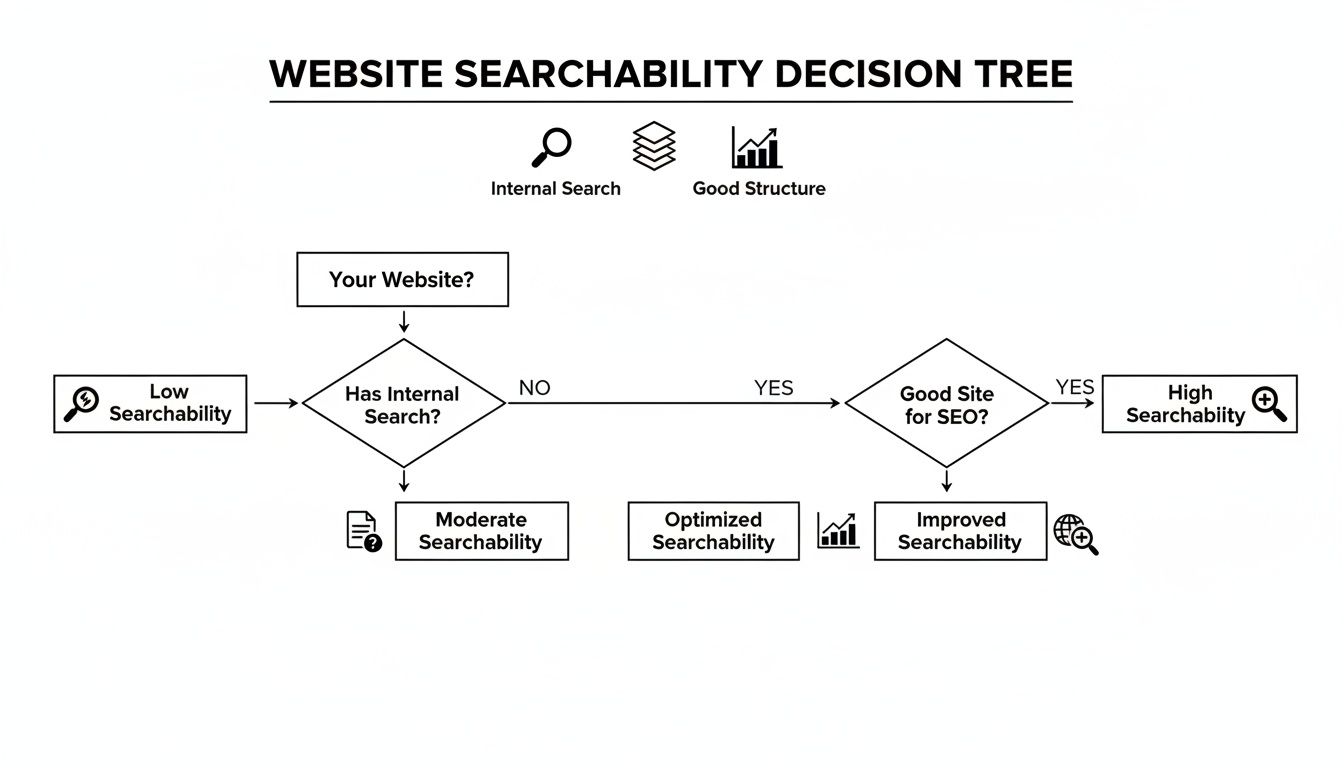
As the diagram shows, making a website truly discoverable is a two-part job: it depends on both its internal structure and how well it’s set up for external search engines to crawl.
The most powerful free tool for searching an entire website isn't on the website itself—it's Google. Using the
site:operator is almost always more effective than a site's built-in search bar and requires zero technical skill.
For example, a query like site:wikipedia.org "Albert Einstein" uses Google's powerful algorithm to search that entire domain. This method is incredibly reliable, especially if you're wondering whether the site has been indexed properly in the first place. You can learn more about how to check if a website is indexed to confirm it’s even searchable by Google to begin with.